

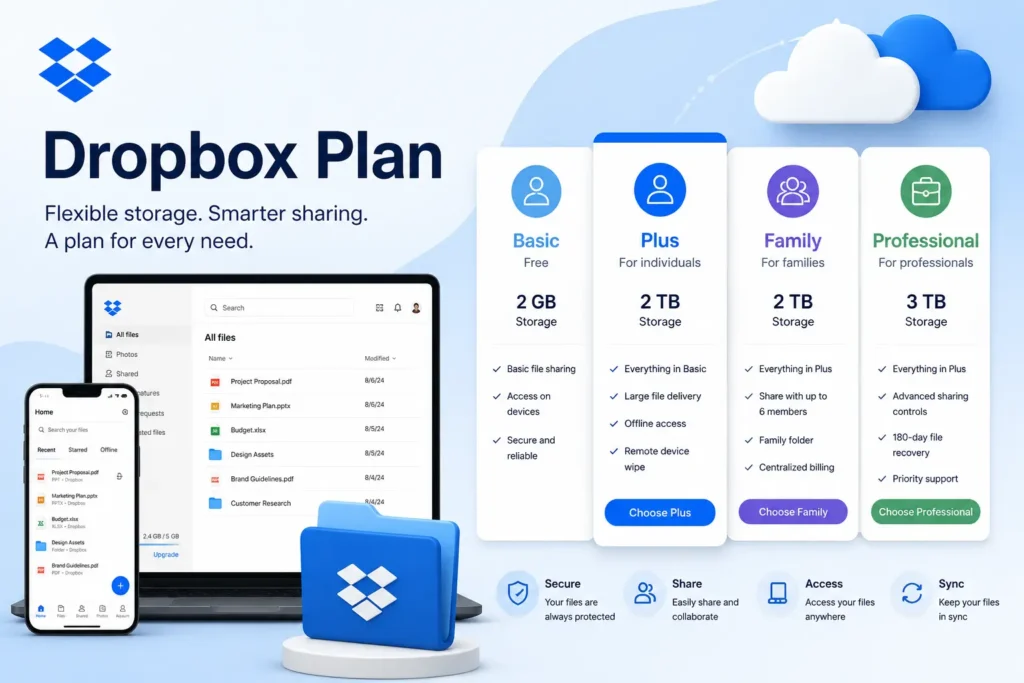
A Dropbox plan should match your storage needs, number of users, and collaboration requirements. Solo users often need more than free storage once photos, videos, and large files come into play. Families may prefer shared storage under one dropbox family plan. Freelancers may need advanced sharing and file recovery tools through Professional.
Teams should look at dropbox business plans with admin controls, like Standard or Advanced. Compare current storage, price, recovery features, and user limits before you upgrade, downgrade, or switch to a new plan.
Picking the right dropbox plan comes down to a few simple things: how much storage you need, how many people will use it, and how you share files day to day. This guide compares every major Dropbox plan, from the free tier all the way up to Enterprise, so you can see storage limits, pricing, and key features side by side.
Whether you are a solo user outgrowing free storage, a family sharing one account, a freelancer working with clients, or a team that needs admin controls, you will find a clear match here. No long history lesson, just what you need to choose the right plan and avoid paying for space or tools you will never use.
Dropbox Plans at a Glance
Dropbox offers several plans for different needs. Some are for one person. Some are for families. Some are for teams and big companies. This guide breaks down all the dropbox plans so you can pick the right one.
Dropbox pricing plans change a little over time, so always check the numbers on the day you sign up.
| Plan | Monthly Price (paid yearly) | Storage | Best For | Key Features |
| Free (Basic) | $0 | 2 GB | Trying Dropbox or storing a few files | Basic file sync on a few devices |
| Plus | About $10 to $12 | 2 TB | One person who needs real storage space | File recovery, easy screen recording, simple sharing |
| Family | About $17 to $20 | 2 TB shared | Up to 6 people in one household | Shared storage, private folders for each person |
| Professional | About $17 to $20 | 3 TB | Freelancers who share files with clients | Password protected links, longer file history, e signatures |
| Standard (Business) | About $18 to $20 per user | 9 TB shared | Small teams that need shared folders | Team folders, admin tools, safety features |
| Advanced (Business) | About $24 to $30 per user | No storage limit (fair use) | Bigger teams that need more control | Advanced admin roles, ransomware alerts, app integrations |
| Enterprise | Custom price | Custom | Large companies with 100+ users | Dedicated support, data control, custom contracts |
These dropbox storage plans cover almost every kind of user. A student may only need the free plan. A photographer may need Plus or Professional for bigger files. A small business may need Standard or Advanced for team access.
Note: dropbox pricing can shift based on your region, any current deals, and whether you pay monthly or yearly. Yearly billing is usually the cheaper option. Always check the official pricing page before you buy.
Which Dropbox Plan Is Best for You?
The best Dropbox plan depends on how many people need access, how much storage you use, and whether you need advanced sharing, file recovery, or admin controls. Pick the smallest plan that truly covers your storage and teamwork needs. There is no reason to pay for extra features you will never use.
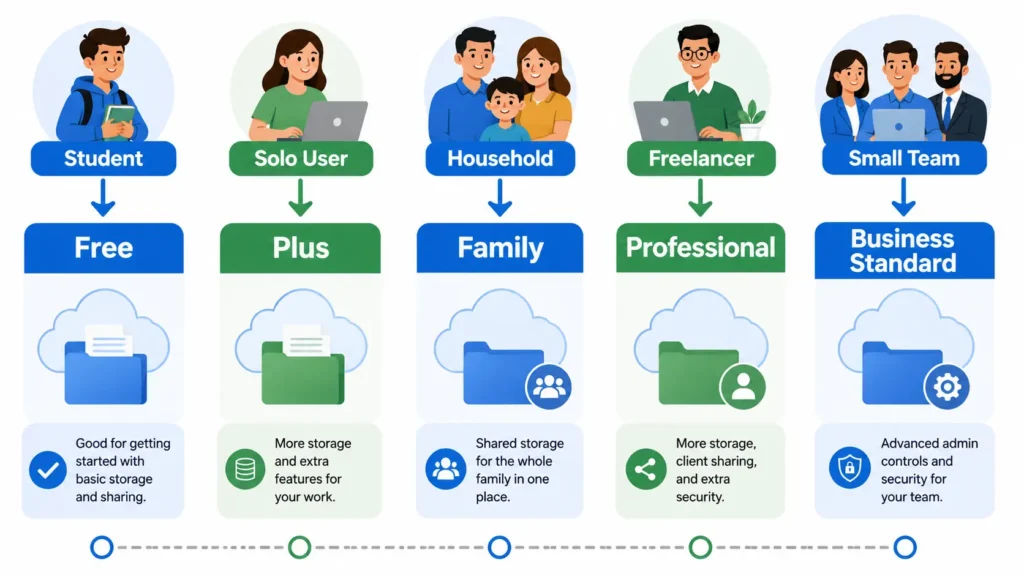
Step 1: How many people need to use it?
Just you. Look at the Personal Use section below.
A family, 2 to 6 people. Dropbox Family is made for this. Everyone shares one storage pool, but each person also gets a private space.
A team or business, 3 or more people. Look at the Team Use section below. This is where dropbox business plans come in.
Personal Use: Choosing the Best Dropbox Plan for Personal Use
| If you… | Pick this plan | Why it fits |
| Just need basic backup for a few files | Free | 2 GB covers light, simple use at no cost |
| Need real storage but do not share private files with outsiders | Plus | 2 TB is plenty for most single users |
| Share files often with clients and need extra safety and history | Professional | Adds password protected links, longer file history, and e signature tools |
Team Use: Picking From Dropbox Business Plans
| If you… | Pick this plan | Why it fits |
| Have a small team that needs shared folders and basic control | Standard | Gives you team folders and simple admin tools |
| Have a growing team that needs more security and control | Advanced | Adds stronger admin roles, ransomware alerts, and more app connections |
| Run a large company with 100 or more users | Enterprise | Offers custom deals, dedicated support, and full data control |
A few tips before you choose
Think about storage first. Do not upgrade just for one small feature you may only use once.
Remember that business plans need at least 3 users. If you are working alone but want admin features, you may end up paying for seats you do not need.
Paying yearly instead of monthly almost always saves money. This is true across nearly every Dropbox plan, from Plus all the way to Advanced.
Whether you are searching for a simple personal plan or comparing full dropbox business plans, the goal stays the same. Match the plan size to your real storage needs and how many people need access. This keeps your cloud storage useful without paying for space or tools you will never touch.
Dropbox Free Plan: Who Should Stay Free?
The dropbox free plan can work well for light document storage and simple sharing. But its storage is small. People who save photos, videos, or use many shared folders often need a paid plan instead.
The free Dropbox plan, also called Basic, gives you 2 GB of storage. That sounds small, and it is. But for the right person, it still gets the job done. Think of it as a starter plan. It works best for simple use, not heavy daily storage.
Stick with the free plan if you:
- Only store small files like documents, PDFs, or notes
- Share files once in a while, not every day
- Do not need to recover old or deleted files often
- Just want to try Dropbox before paying for anything
Upgrade to a paid plan if you:
- Save a lot of photos or videos, since these take up space fast
- Use more than 3 devices to sync your files
- Need to get back deleted or changed files after some time has passed
- Work with a group of people who share folders often
- Want safer links, like ones that expire or need a password
Storage fills up faster than most people expect. A few photos or one short video can use up most of your free space in a single day. This is one of the biggest reasons people move from a free plan to a paid one so quickly.
If you are still deciding, it can help to compare free cloud storage plans across different providers. Some offer more free space, while others offer better sharing tools. Looking at more than one option helps you find the best fit before you commit to anything long term.
Dropbox Plus: Best Everyday Personal Plan?
Dropbox Plus is often the first paid plan people choose. It works well for one person who needs more storage space, better file recovery, and bigger file transfers than the free tier offers.
Many people start with the free plan, then move to Dropbox Plus once they run out of space. It is built for everyday personal use, not big teams or businesses. If you take a lot of photos, work with large files, or just need more room to breathe, this plan often fits the bill.
Dropbox Plus Feature Checklist
- 2 TB of storage. That is a huge jump from the free plan’s 2 GB, giving you room for photos, videos, and large documents.
- 30 day file recovery. If you delete or lose a file, you can often bring it back within a set time window.
- Larger file transfers. Send bigger files to others without hitting a small size limit.
- Screen recording tools. Capture and share video clips right from your desktop.
- Basic sharing controls. Share files and folders with others in a simple, easy way.
- Sync across devices. Keep your files updated on your phone, tablet, and computer at the same time.
Who fits best with Dropbox Plus
- People who save a lot of photos or videos
- Students who need extra storage for school projects
- Anyone who outgrew the free plan but does not need business tools
- Single users who want simple, reliable cloud backup
Who might need something more
If you often share sensitive files with clients, need password protected links, or want a longer file recovery window, Dropbox Professional may be a better fit. Plus covers storage and basic sharing well, but it does not include some of the extra safety tools found in higher tiers.
For most single users though, Dropbox Plus hits a good balance. You get plenty of storage, solid recovery options, and simple sharing tools, all without paying for business features you may never use.
Dropbox Family Plan: When Does Sharing Make Sense?
A family plan can make sense when several people in one household need shared storage and their own separate logins under one subscription. Compare the total storage and member limit against buying separate personal plans before you decide.
The Dropbox Family plan lets multiple people share one storage pool while still keeping their own private files. It is built for households, not random groups of friends or coworkers. Everyone gets their own login, but the storage space and the bill are shared.
Dropbox Family Plan: Pros and Cons
| Pros | Cons |
| Up to 6 people can share one plan | Storage is shared, so heavy users can use it up fast |
| Each member gets a private, separate login | No team folders or business style admin tools |
| Often cheaper than 6 separate personal plans | Best for households, not coworkers or random groups |
| Simple setup for parents, kids, or roommates | One person usually manages the billing and account |
When a family plan makes sense
- You live with several people who all need real cloud storage
- Your household already shares other subscriptions, like streaming services
- You want to avoid paying for 6 separate personal plans
- Everyone in the home has light to medium storage needs
When it might not be worth it
- Only one or two people in the home actually need storage
- One family member uses huge amounts of space, like raw video files
- You need business features like team folders or admin control
- Members are not in the same household, since sharing is meant for family use
Doing the math before you buy
Before choosing a family plan, add up how much storage each person would need on their own. Then compare that total, and the total cost, against buying separate personal plans instead. If several people need solid storage and simple sharing, a family plan often saves money and keeps everything under one easy to manage subscription.
Dropbox Professional: Is It Worth It for Freelancers?
Dropbox Professional can be worth it for freelancers and client based work that needs stronger sharing controls, better presentation tools, or a longer file recovery window. If you only need more storage space, Plus may already be enough.
Freelancers often start with Plus, then wonder if it is time to move up. Dropbox Professional is built for people who work directly with clients, not just people who need extra storage. The real value is in the sharing tools and safety features, not the storage size alone.
Dropbox Professional vs Dropbox Plus
| Feature | Plus | Professional |
| Storage space | 2 TB | 3 TB |
| File recovery window | 30 days | 180 days |
| Password protected links | No | Yes |
| Link expiration dates | No | Yes |
| Branded sharing pages | No | Yes |
| E signature tools | Limited | Included |
| Best for | Personal storage needs | Client facing freelance work |
When Professional is worth the upgrade
- You share sensitive files with clients and need password protection
- You want links that expire automatically after a set time
- You need a longer file recovery window in case something is deleted by mistake
- You send contracts or documents that need e signatures
- You want a more polished, branded look when sharing files with clients
When Plus is still enough
- You mainly need storage space, not extra sharing tools
- Your clients do not require password protected or expiring links
- You rarely need to recover old files past a few weeks
- You are not using e signature tools in your workflow
Making the final call
For many freelancers, the decision comes down to trust and safety, not just storage. If client work involves private documents, contracts, or sensitive files, Dropbox Professional often earns its higher price through stronger sharing controls and longer recovery options. If your work is simpler and mostly personal, sticking with Plus can save money without losing anything you actually use.
Dropbox Business Plans: Standard, Advanced, and Enterprise
Dropbox business plans are built for teams, not single users. They add things like shared team storage, admin controls, and stronger security. This section breaks down the three main tiers so you can pick the right one for your team size and needs.
Dropbox Standard: The Starting Point for Teams
Standard is the entry level business plan. It fits small teams that need shared folders and some basic control over who can see what.
- Team storage. Comes with a shared storage pool instead of separate space for each person.
- Team folders. Let groups work from the same shared space instead of passing files back and forth.
- Admin console. Gives one person basic control over user accounts and settings.
- Minimum seats. Business plans usually need at least 3 users to sign up.
- Best for. Small teams that need shared access and light admin tools, without paying for extra features they will not use.
Dropbox Advanced: More Control for Growing Teams
Advanced builds on Standard. It is made for teams that are growing and need stronger security, deeper admin tools, and more storage flexibility.
- Bigger or unlimited storage. Storage scales with the team, based on fair use rather than a hard cap.
- Stronger admin roles. Lets you set different levels of access for different team members.
- Security alerts. Includes tools like ransomware detection to help protect shared files.
- More integrations. Connects with tools like Slack and Zoom for smoother teamwork.
- Best for. Teams that have outgrown Standard and need more control, more storage, and stronger security.
Dropbox Enterprise: Built for Large Organizations
Enterprise is the top tier. It is made for large companies, often with 100 or more users, that need custom setups instead of a one size fits all plan.
- Custom pricing. Costs are worked out based on the size and needs of the company.
- Data control. Offers more control over where and how company data is stored.
- Dedicated support. Larger organizations get direct support instead of general help channels.
- Custom contracts. Terms can be shaped around the specific needs of the business.
- Best for. Large organizations that need strict control, custom terms, and dedicated support at scale.
Business Plan Checklist
Before you buy any business plan, write down:
- Number of users
- Expected storage growth for 12 months
- Who will manage the admin console
- Whether you need GDPR-aware processes for EU personal data
- Whether your team needs MFA on every account
- Which folders must stay private
- How you will offboard users who leave the team
CISA recommends strong passwords and multifactor authentication to protect online accounts. NIST also publishes cybersecurity framework resources that teams can use when planning safer file handling.
Choosing between the three
Team size is the easiest starting point. Small teams often do well with Standard. Growing teams that need more security and control usually move to Advanced. Large companies with strict rules around data and support tend to need Enterprise.
Whichever tier you look at, the goal stays the same across all dropbox business plans. Match the seats, storage, and admin tools to what your team actually uses, not what sounds impressive on paper.
For privacy context when comparing cloud services, you can also learn more about cloud storage safety.
How Much Dropbox Storage Do You Actually Need?
Estimate storage by file type. Documents need very little space. Photos need more. Videos and design files are needed the most. Pick a plan that gives you room to grow for the next 12 months, not just enough for today’s files.
A lot of people guess wrong when picking dropbox storage plans. They either pay for way more space than they need, or they run out of room in just a few months. The easiest fix is to think about what kind of files you actually store, not just how many files you have.
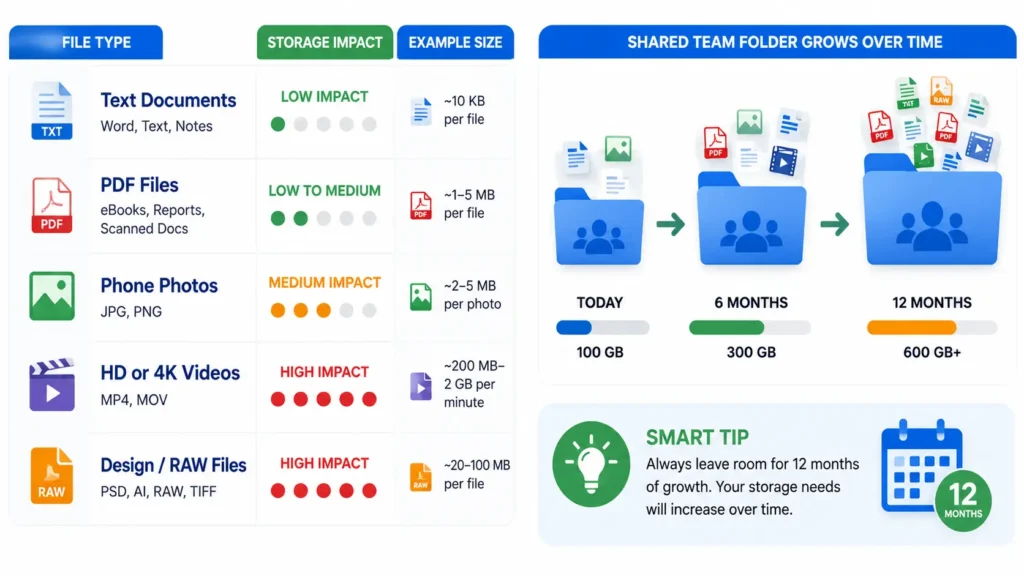
Storage Estimator by File Type
| File Type | Typical Size | How Fast It Fills Storage |
| Text documents and PDFs | A few KB to a few MB each | Very slow, thousands of files fit easily |
| Photos | 3 MB to 8 MB each | Moderate, adds up fast with large photo libraries |
| Videos | 100 MB to several GB each | Fast, even short clips use a lot of space |
| Design files (like PSD or video project files) | Often 500 MB or more each | Very fast, some single files can use gigabytes |
A simple way to think about it
If you mostly store documents, even a small plan can last for years. Storage barely moves when you are just saving text files, spreadsheets, or PDFs.
If you store photos regularly, space fills up faster than expected. A phone full of photos backed up all at once can eat through several gigabytes in one sitting.
If you work with videos or design files, plan for the biggest storage tier you can reasonably afford. These file types are the main reason people upgrade from a free or basic plan to something much larger.
Plan for the next 12 months, not just today
Storage needs almost always grow over time. Photos pile up. Projects get bigger. Backups keep running in the background. A good rule is to guess your current storage use, then add extra room for a full year of growth before choosing a plan.
This is also why file type matters so much when comparing dropbox storage plans. Two people with the same number of files can have very different storage needs, depending on whether those files are simple documents or heavy video and design work.
If photos make up most of your storage use, it can help to see photo backup solutions built specifically for that kind of file. Photo heavy storage often benefits from tools made just for images, on top of whatever general cloud storage plan you choose.
What Features Matter More Than Storage Alone?
Storage matters, but file recovery, version history, sharing permissions, transfer limits, device support, admin tools, and account security often decide whether a plan is actually useful day to day.
It is easy to only look at storage size when comparing plans. But two plans with the same amount of space can feel completely different to use. The features around that storage often matter just as much, sometimes more.
Feature Checklist Beyond Storage
- File recovery. Lets you bring back a file you deleted by accident. Some plans only cover a short window, while others cover many months.
- Version history. Keeps older copies of a file as it changes over time. This helps if a file gets edited by mistake or a change needs to be undone.
- Shared folders and sharing permissions. Controls who can view, edit, or comment on a file. Simple sharing works for casual use, but stronger permission controls matter for team or client work.
- Transfer limits. Sets how large a single file or shared link can be. This becomes important fast if you work with videos, design files, or large batches of photos.
- Device support. Determines how many phones, tablets, or computers can stay synced under one account.
- Admin tools. Give one person control over user accounts, permissions, and settings. This matters far more for teams than for single users.
- Account security, including MFA. Multi factor authentication, often shortened to MFA, adds a second step when logging in, like a code sent to your phone. Security groups like CISA recommend MFA as one of the simplest ways to protect any online account, including cloud storage.
Why these features matter day to day
Storage decides how much you can save. These other features decide how safely and smoothly you can actually use that storage.
A plan with huge storage but weak file recovery can still lead to lost work. A plan with strong sharing permissions but small storage may still frustrate a growing team. The best fit usually balances storage size with the features that match how you actually use your files, alone or with others.
Look past the number on the storage label
Before choosing a plan based on price or storage alone, check what happens if a file is deleted, if a device is lost, or if a shared link ends up in the wrong hands. These moments are where recovery tools, version history, and account security actually prove their worth.
If you want a deeper look at how providers protect your files and accounts, it can help to learn more about cloud storage safety before making a final decision. Good habits, like using MFA and understanding your recovery options, matter no matter which plan or provider you choose.
Monthly vs Annual Dropbox Pricing
Dropbox pricing usually comes in two forms, monthly billing or annual billing. Both get you the same plan and features. The real difference comes down to cost and flexibility.
Monthly vs Annual: Quick Comparison
| Billing Type | Typical Cost | Flexibility | Best For |
| Monthly billing | Usually higher overall cost | Cancel or switch plans anytime | People who are not sure how long they will need the plan |
| Annual billing | Usually lower overall cost | Locked in for a full year | People who already know they will use Dropbox long term |
Why annual billing often costs less
Paying once a year instead of once a month usually works out cheaper over time. Dropbox, like many other services, offers a discount to reward longer commitments. Over a full year, this can add up to real savings, especially on higher tier plans like Professional, Standard, or Advanced.
Why monthly billing still makes sense for some people
Monthly billing costs more in total, but it gives more freedom. If your storage needs might change soon, or you are still testing whether Dropbox is the right fit, paying monthly lets you cancel or switch plans without losing money on a longer commitment.
What to check before you choose
Prices can shift based on your region, current promotions, and which plan you are looking at. Before picking monthly or annual billing, compare both options directly on the official pricing page for your area. This helps make sure you are seeing accurate dropbox pricing, not outdated numbers from an older promotion or a different region.
If you plan to stick with Dropbox for the long run, annual billing is usually the smarter money saving choice. If you want flexibility while you figure out your exact needs, monthly billing keeps things simple and easy to change later.
Should You Upgrade, Downgrade, or Switch Plans?
Upgrade when you keep hitting storage limits, need longer file recovery, or need team admin tools. Downgrade when you are paying for storage or features you are not using. Always back up important files before you change plans.
Plans are not meant to be permanent. As your storage needs, team size, or work style changes, it makes sense to upgrade, downgrade, or switch to a different plan type. Here is a simple, step by step way to decide.
Step 1: Check if you keep running out of storage
If you get storage warnings often, or you delete files just to make room, that is a clear sign you need more space. This is one of the most common reasons people choose to upgrade a dropbox plan.
Step 2: Look at how you actually share files
If you now share files with clients, need password protected links, or want longer file recovery, a higher tier plan may fit better than your current one. If your sharing needs are simple, you may not need to upgrade at all.
Step 3: Think about team size and admin needs
If you started alone but now work with a team, moving to a business tier plan may make more sense than staying on a personal plan. Team folders and admin tools only really pay off once more than one person is involved.
Step 4: Review your bill for unused features
If you are paying for storage you never fill, or features like e signatures or advanced admin tools you never touch, it may be time to downgrade. There is no reason to keep paying for space or tools that go unused month after month.
Step 5: Back up your files before making any changes
Before you upgrade, downgrade, or switch to a different plan type, back up your most important files. This protects you in case anything goes wrong during the switch, and gives you peace of mind while the change is being made.
Step 6: Confirm the new plan on the official page
Once you know what you need, check the official plan page to confirm current pricing, storage, and features before you commit. This helps make sure the plan you choose actually matches what was described, since pricing and features can shift over time.
Switching plans does not have to be stressful. By checking your storage use, sharing habits, team size, and unused features first, you can upgrade, downgrade, or switch with confidence, instead of guessing and hoping it works out.
Quick Tips Before You Buy a Dropbox Plan
Before you buy any Dropbox plan, a few small steps can save you time, money, and stress later. This short checklist covers the basics people often skip.
Pre-Purchase Checklist
- Use a strong password. Pick a password that is long and not used on other accounts. A weak or reused password is one of the easiest ways an account gets broken into.
- Turn on MFA. Multi factor authentication, or MFA, adds a second login step, like a code sent to your phone. Security groups like CISA recommend MFA as a simple way to protect any online account, including cloud storage.
- Set a recovery email. Make sure your account has a working recovery email attached. This makes it much easier to get back into your account if you ever get locked out.
- Take stock of your current files. Before buying a plan, do a quick check of what you already store. This helps you pick a plan size that actually matches your real storage needs, not just a guess.
- Be careful when testing new tools. If you are just trying Dropbox out, be cautious about which email you sign up with. Using a cluttered personal inbox for every new signup can lead to spam and missed messages later.
A note on testing before you commit
If you like to try new tools before fully committing, it can help to protect your inbox when trying new tools, especially with services that send frequent notifications or promotional emails. Keeping your main inbox clean makes it easier to spot important messages, like security alerts or password reset emails, when they actually matter.
Final check before you buy
Once your password, MFA, recovery email, and file inventory are all in order, take one more look at the official plan page. Confirm the storage, price, and features match what you expect before you commit. A few minutes of prep now can save a lot of hassle after you have already signed up.
Final Recommendation
The best dropbox plan is the smallest plan that still covers your real storage space, user count, and sharing needs.
Choose the dropbox free plan only for light testing and small documents. Choose Dropbox Plus for everyday personal cloud storage. Choose the Dropbox Family plan for household sharing. Choose Dropbox Professional for freelancer and client work. Choose Dropbox Standard or higher business plans when your team needs admin controls, user licenses, and collaboration tools.
Before you pay, estimate your files, compare monthly billing and annual billing, and turn on MFA. Recheck official dropbox pricing on the day you subscribe.
If you want to test Dropbox or another cloud tool without filling your main inbox, you can use disposable mail for quick verification. For any paid Dropbox plan you intend to keep, use a permanent email address for password recovery and security alerts.
Frequently Asked Questions
What Dropbox plan is best for personal use?
For many individuals, a personal paid plan is the first real step once free storage runs out. Choose based on your file size, how much file recovery you need, and whether you work alone or share often. Always check the current Plus and Professional details on Dropbox’s official plans page before you decide.
How much does Dropbox cost?
Dropbox pricing depends on the plan you pick, whether you pay monthly or yearly, your region, and whether the plan is personal or business. Check the official Dropbox plans and buy pages for the most current monthly and annual prices before you purchase.
Is the Dropbox free plan enough?
The dropbox free plan can be enough for light document use and simple sharing. It is often too small once photo libraries, videos, or heavy file sharing enter the picture. The free tier gives about 2 GB of storage, which fills up fast with anything beyond basic documents.
What is the difference between Dropbox Plus and Professional?
Dropbox Plus is generally built for personal users who need more storage and solid everyday tools. Professional is built for freelancers and power users who need stronger sharing controls or client facing features like password protected links and e signatures. Always compare the latest feature lists before you upgrade from Plus to Professional.
Is Dropbox Family worth it?
The dropbox family plan can be worth it when several people in one household need shared storage along with their own separate logins under one subscription. Compare the total shared storage against the cost of buying separate personal plans to see which option actually saves more money.
What Dropbox plan is best for a small team?
Small teams usually do best with a business plan that offers shared storage, admin controls, and collaboration tools. Start by reviewing the official business plan comparison, then choose based on team size, security needs, and budget.
Can I change my Dropbox plan later?
Yes. Most users can upgrade or switch plans as their needs grow. Before you downgrade, check your current storage use and back up any important files first, so you do not lose access to data that goes above the new plan’s limit.