

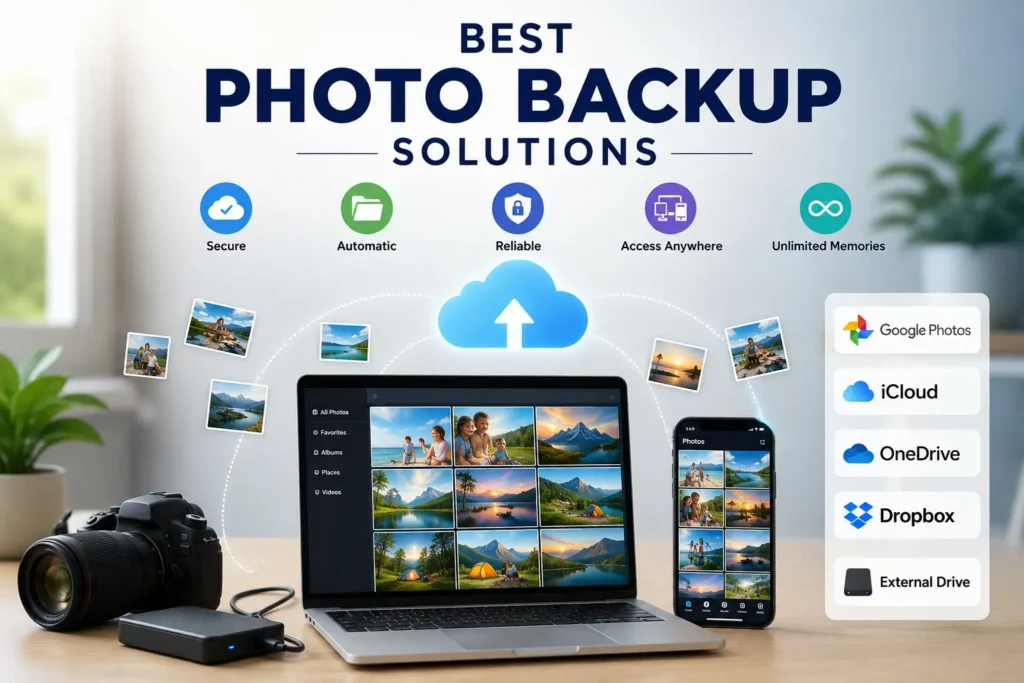
The best photo backup solutions keep your photos in more than one place. For most people, that means automatic phone backup plus a second copy on an external drive or another cloud service. Choose a solution that saves original files, works on your devices, fits your storage needs, and lets you restore photos when you need them.
Photos are easy to take and hard to replace.
A phone can break. A laptop can be stolen. A hard drive can stop working. An account can get locked. A child can tap the wrong button and delete a family album.
That is why the best photo backup solutions do more than store pictures in one app. They give you a safe plan for keeping copies of your photo library.
This guide compares the best photo backup service options for everyday phone users, families, creators, and photographers. It also explains the best way to backup photos so you do not depend on only one phone, one drive, or one cloud account.
Quick Comparison of the Best Photo Backup Solutions
The right online photo backup tool depends on your devices, file sizes, budget, and how you use your photos.
Some services are best for easy phone uploads. Others work better for large RAW files, full-resolution videos, or a complete computer backup. PCMag’s 2026 photo-storage roundup includes services such as Google Photos, iCloud Photos, Amazon Photos, Microsoft OneDrive, Adobe Lightroom, Flickr, SmugMug, and Mylio.
| Solution | Best For | Backup Strength | Main Limitation |
| Google Photos | Android users and everyday photo search | Automatic uploads and smart search | Uses shared Google account storage |
| iCloud Photos | iPhone, iPad, and Mac users | Easy Apple device sync | Works best inside the Apple ecosystem |
| Amazon Photos | Prime households | Simple family photo storage | Check current Prime and video-storage terms |
| Microsoft OneDrive | Microsoft 365 users | Useful for files and photos across devices | Less focused on photo organization |
| Backblaze | Computer-based photo libraries | Separate cloud backup for a computer | Not a full phone gallery app |
| Adobe Lightroom | Working photographers | RAW workflow and editing tools | Subscription cost and learning curve |
| pCloud | Large media libraries | Flexible storage for photos and video | Check current plan and privacy details |
| Flickr or SmugMug | Sharing and portfolio users | Photo display and client sharing | Not enough as your only backup |
| NAS plus external drive | Local-control users | Direct control and large storage | Needs setup and an offsite copy |
The safest plan often combines two or more of these options. For example, you may use Google Photos for automatic phone uploads, an external hard drive for local backup, and a separate cloud backup for important originals.
If you want to start with free options, see this guide to compare free cloud storage plans. FreeMail AI notes that services such as MEGA and Google Drive may offer free storage, but current limits should always be checked before you move a large photo library.
Which Photo Backup Solution Is Best for You?
The best photo backup service is different for each person.
An iPhone user may want iCloud Photos. An Android user may prefer Google Photos. A photographer with many RAW files may need Adobe Lightroom, Backblaze, a NAS, or external drives. A family may want simple shared albums and automatic camera-roll backup.
Use this quick guide before choosing.
| If You Need… | Start By Looking At… |
| Simple Android photo backup | Google Photos |
| Easy iPhone and Mac backup | iCloud Photos |
| Photos for a Prime household | Amazon Photos |
| A backup for a computer photo library | Backblaze |
| RAW files and editing workflow | Adobe Lightroom |
| Large personal photo and video storage | pCloud |
| Portfolio sharing or client galleries | SmugMug or Flickr |
| Local control over your files | NAS and external hard drives |
| A work-file and photo option | Microsoft OneDrive |
Do not choose only by storage size.
Also think about:
- Does it keep original quality?
- Does it support full-resolution video?
- Can it store RAW files?
- Does it work on Android, iPhone, Mac, Windows, or all of them?
- Can you restore deleted files?
- Can you download all your photos later?
- Does it preserve photo metadata?
- Does it support two-factor authentication?
- Will the price still work when your photo library grows?
The best cloud backup for photos is usually not a single app. It is a simple system with more than one copy.
9 Best Photo Backup Solutions by Use Case
Not every photo backup service is built for the same user. Some are ideal for smartphones, others are designed for photographers or large media libraries. Here are the best options based on different needs:
- Google Photos: Best for Android users who want automatic backups and powerful photo search.
- iCloud Photos: Best for iPhone, iPad, and Mac users who want seamless Apple device syncing.
- Amazon Photos: Best for Amazon Prime members and families needing simple cloud photo storage.
- Microsoft OneDrive: Best for Windows and Microsoft 365 users who store photos alongside documents.
- Backblaze: Best for backing up large photo collections stored on Windows PCs and Macs.
- Adobe Lightroom: Best for photographers who manage, edit, and organize RAW images.
- pCloud: Best for users with large photo, video, and media libraries.
- SmugMug & Flickr: Best for photographers who want to share galleries or build an online portfolio.
- NAS & External Drives: Best for users who want full control over local photo backups and long-term storage.
1. Google Photos for Android and Everyday Search
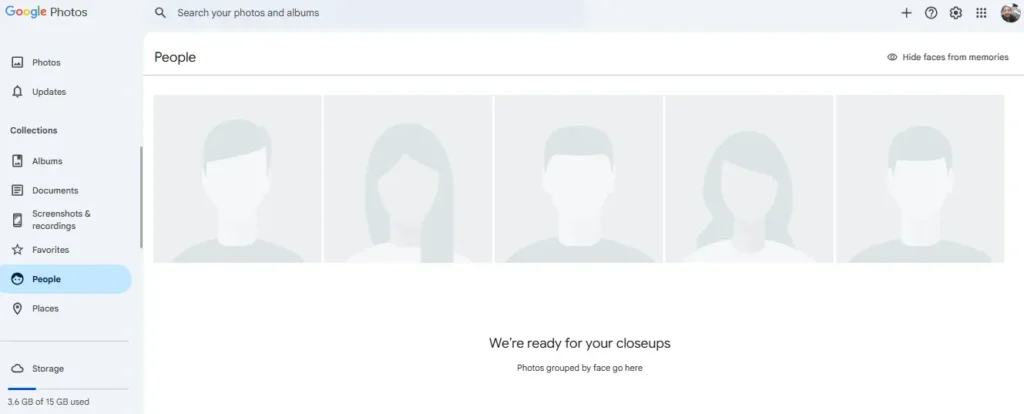
Google Photos is one of the easiest photo backup apps for Android users. It can automatically upload photos and videos from your camera roll, then make them easier to search, organize, and share.
For example, you can search for places, people, objects, or dates. This can be useful when you have years of photos and cannot remember where a picture is saved.
Google Photos is a strong choice if you want:
- Automatic upload from an Android phone
- Easy search tools
- Shared albums
- Photo access on different devices
- A simple way to save camera-roll photos
- Google account support
Google Photos can also work well for families who already use Gmail, Google Drive, and Google Docs. However, it should not be your only photo backup.
Why? Because a synced photo library can copy changes across devices. If you delete a photo or lose account access, you need another copy somewhere else.
Google Photos also uses the storage connected to your Google account. Before uploading a large video library, check your available storage and current plan rules.
If you use visual search, you may also want to learn how Google Lens works. Google Lens can help users search with an image on Android, iPhone, and desktop Chrome.
2. iCloud Photos for iPhone, iPad, and Mac Users
iCloud Photos is often the most natural photo backup for iPhone users. It works with the Apple Photos app and can keep your pictures available across an iPhone, iPad, and Mac.
When you take a photo on your iPhone, it can appear on your other Apple devices. This is helpful for people who want a simple setup and do not want to move files by hand.
iCloud Photos may be a good choice if you use:
- iPhone
- iPad
- Mac
- Apple Photos
- Family Sharing
- Shared albums
- Live Photos
- HEIC photo files
The biggest strength is convenience. Your Apple devices can work together without much extra setup.
However, iCloud Photos is mainly a sync service. It keeps your library connected across your Apple devices. It does not remove the need for a second backup.
For important family pictures, keep another copy on an external hard drive, a NAS, or a separate cloud storage provider. PetaPixel recommends using multiple backup locations, including hard drives, NAS systems, and cloud storage.
3. Amazon Photos for Prime Households
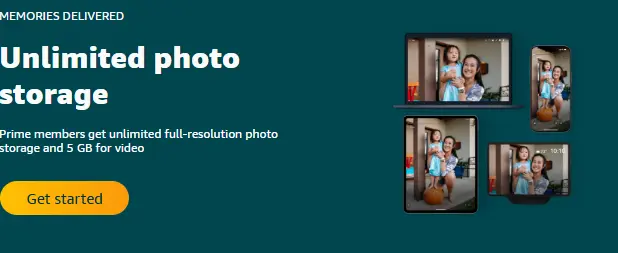
Amazon Photos can be a useful choice for households that already use Amazon Prime. It is built around photo storage, photo browsing, and family access.
It may work well for people who want to back up phone photos without learning a complicated system. You can upload pictures from a phone, tablet, or computer and view them later from another device.
Amazon Photos may suit:
- Prime households
- Families with many phone photos
- People who want simple sharing
- Users who already use Amazon devices
- Users who want another copy outside Google or Apple
Before choosing Amazon Photos, check the current details for your region. Membership rules, video storage, family features, and storage limits can change.
This is important because photos and videos do not use the same amount of storage. A few short videos can take as much space as many photos.
Keep original files when possible. Do not assume a service will always preserve every file type, album, video format, or piece of metadata in the same way.
4. Microsoft OneDrive for Microsoft 365 Users

Microsoft OneDrive is a good option for people who already use Windows, Microsoft 365, Word, Excel, PowerPoint, and Outlook.
It can back up folders from a Windows computer and make files available on different devices. It may not feel as photo-focused as Google Photos or iCloud Photos, but it can be useful when your photos live next to documents, school files, and work folders.
OneDrive may be a good fit for:
- Windows users
- Microsoft 365 subscribers
- Families using Windows PCs
- Users with photos stored in computer folders
- People who need photo and document storage together
It can be especially useful when your photo library is stored in a Pictures folder on your computer. Still, check how the app handles camera uploads, external drives, original quality, and restore options before relying on it.
OneDrive works best as part of a wider plan. You may use it for easy access to current files, then keep a local backup on an external hard drive.
5. Backblaze for Computer-Based Photo Libraries
Backblaze is different from a phone gallery app. It is more focused on backing up files from a computer.
This makes it useful for people who store photos on a Windows PC or Mac. It can also suit creators who keep years of photo folders, scans, videos, and camera files on a computer.
Backblaze may work well if you have:
- Large folders of photos on a laptop or desktop
- Old family photo scans
- External hard drives connected to your computer
- Photos from digital cameras
- Video files
- A photo archive that does not fit on a phone
Backblaze explains an important idea: a backup is different from having photos visible in your phone gallery. A backup is a separate copy designed to help you recover files after a device problem, loss, or mistake.
This matters because your phone-photo app may make pictures easy to view, but it may not give you the best recovery plan after a major problem.
Backblaze can be a useful second copy for a computer photo library. A photographer-focused 2026 comparison also describes Backblaze Personal as a simple backup option, although current pricing must be verified before publication or purchase.
6. Adobe Lightroom for Working Photographers
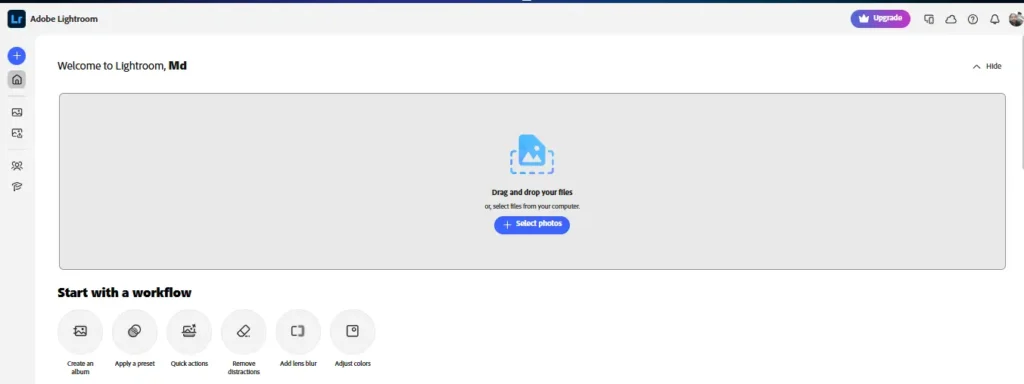
Adobe Lightroom is a strong option for photographers who shoot, edit, sort, and deliver many images. It is especially useful for people who work with RAW files.
A RAW file is a larger original camera file. It holds more image information than a standard JPEG. Photographers often use RAW files because they give more control during editing.
Adobe Lightroom may be right for:
- Wedding photographers
- Portrait photographers
- Travel photographers
- Content creators
- Editors who work with RAW images
- Users who need photo catalogs and edits together
PCMag includes Adobe Lightroom among its top tested online photo-storage services.
However, Lightroom is not always the best choice for a casual user who only wants to save phone pictures. It can cost more and take more time to learn than a simple photo backup app.
Even if you use Lightroom, keep another copy of the original files. A photo workflow is not the same as a full backup plan.
For example, you might keep current work in Lightroom, store a copy on an external hard drive, and maintain an offsite copy through a cloud backup service.
7. pCloud for Large Media Libraries
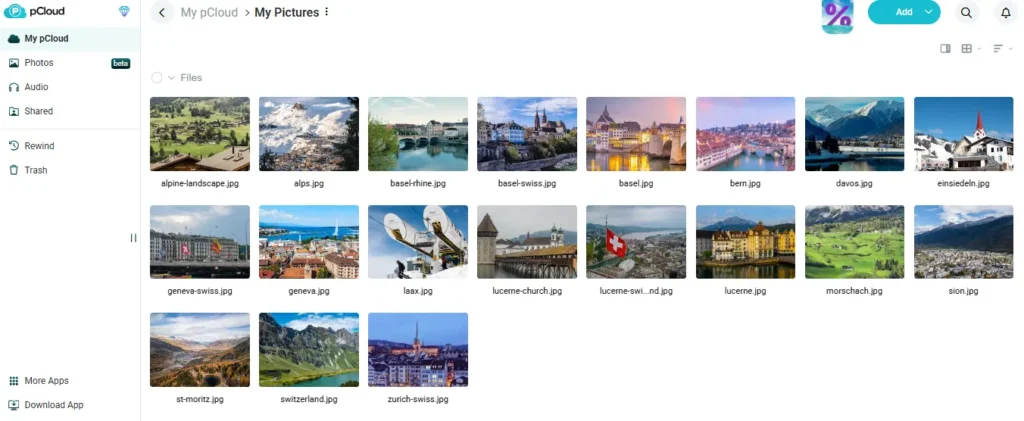
pCloud can be useful for people who have many photos, music files, videos, and personal media folders. It may be worth considering when your needs are bigger than simple phone photo sync.
This can include:
- Large family photo libraries
- Travel videos
- Drone footage
- Music collections
- Scanned documents
- Personal archives
- Mixed media folders
01net lists pCloud as a strong photo-storage option and highlights its simple interface and built-in media player.
pCloud may be a good option if you want to store and access many media files. Still, do not choose it only because it can hold a lot of data.
Before paying, check:
- Storage size
- Annual or lifetime plan terms
- File upload rules
- Video playback tools
- Sharing controls
- Privacy settings
- Account recovery options
- Whether it fits your devices
A large media library needs good organization. Create clear folders for years, events, people, or projects. Use simple file names so your photos are easier to find later.
8. SmugMug and Flickr for Sharing and Portfolios
SmugMug and Flickr are useful for people who want to show photos, share galleries, or build a portfolio.
They may suit:
- Hobby photographers
- Professional photographers
- Artists
- Travel photographers
- Event photographers
- People sharing client galleries
- Creators who want public or private albums
These services can help you display your work in a better way than a plain cloud folder.
However, photo sharing is not the same as photo backup.
A portfolio service may be great for finished photos, selected edits, or client work. It may not be the best place for every original RAW file, full archive, old scan, or private family photo.
PCMag includes Flickr and SmugMug in its 2026 list of online photo-storage services.
Use them as part of your system, not as your only copy. Keep original files elsewhere, especially if you earn money from photography.
9. NAS and External Drives for Local Control

A NAS, or network-attached storage device, is a storage system connected to your home or office network. It can hold large photo libraries and let you access files from different devices.
An external hard drive is simpler. You connect it to a computer and copy your photos onto it.
Both can give you more local control over your files.
Local backup may be useful if you want:
- Fast access to large files
- Storage for RAW photos
- Storage for video files
- No monthly cloud fee for every copy
- More control over your photo library
- A copy that does not depend on one online account
But local storage has risks too.
A drive can fail. A laptop can be stolen. Water, fire, or power problems can damage equipment. That is why a local drive should not be your only photo backup.
PetaPixel recommends keeping copies across different locations such as a regular hard drive, a NAS, and cloud storage. It also notes that using multiple drives adds redundancy because two drives are less likely to fail at the same time.
A simple local setup may look like this:
- Keep current photos on your phone or computer
- Copy them to an external hard drive
- Upload another copy to a cloud backup or storage service
- Test that you can restore a photo
Is a Photo Sync Service the Same as a Backup?
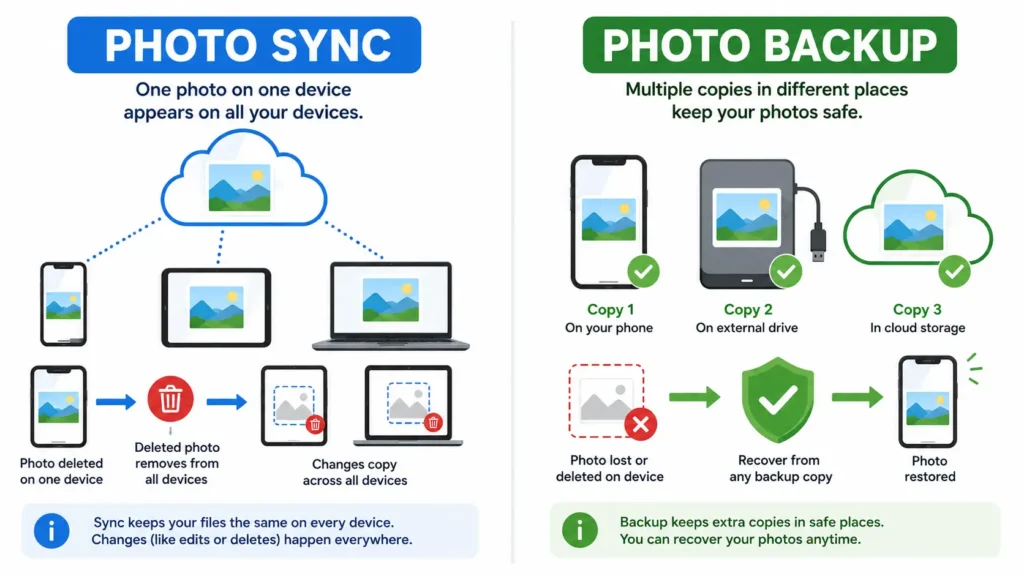
No. Photo sync and photo backup are related, but they are not the same.
A sync service keeps the same photo library available on more than one device. For example, you take a picture on your iPhone and it appears on your iPad and Mac.
This is useful. But sync can also copy mistakes.
If you delete a photo from one synced device, that deletion may appear on the others. If you lose access to your account, you may lose access to the whole library. If an app has a sync problem, your files may be affected in more than one place.
A true backup is a separate copy that you can use to restore files later.
| Feature | Photo Sync | Photo Backup |
| Main goal | Keep photos available across devices | Recover photos after loss or deletion |
| Changes copy across devices | Usually yes | Not always |
| Can replace a deleted photo | Sometimes, for a limited time | Should provide a separate recovery copy |
| Best use | Daily access and sharing | Long-term protection |
| Should it be your only copy? | No | Also no, use more than one copy |
Backblaze makes the same key point: photos being available in a cloud gallery is different from maintaining a separate backup for recovery.
The best photo backup solutions use sync and backup together.
For example:
- Use iCloud Photos for daily Apple device access
- Use an external drive for a local backup
- Use Backblaze or another cloud backup for an offsite copy
That is much safer than trusting only one service.
How Do You Build a 3-2-1 Photo Backup Plan?
The 3-2-1 backup rule is simple.
Keep:
- 3 copies of your important photos
- On 2 different types of storage
- With 1 copy offsite
An offsite copy means it is not kept in the same place as your main computer or drive.
This helps protect photos from:
- Accidental deletion
- Phone loss
- Computer failure
- Broken hard drives
- Theft
- Water damage
- Fire
- Ransomware
- Account problems
PetaPixel recommends a multi-location approach that includes a normal hard drive, NAS, and cloud storage.
A Simple 3-2-1 Plan for Phone Users
- Keep photos on your phone
- Turn on automatic upload to Google Photos, iCloud Photos, or another cloud photo service
- Copy your photos to an external hard drive every month or every few months
This gives you a phone copy, cloud copy, and local drive copy.
A Simple 3-2-1 Plan for Families
- Use Google Photos, iCloud Photos, or Amazon Photos for automatic uploads
- Create shared albums for important family events
- Save full-resolution originals to an external hard drive
- Keep another copy in a separate cloud service or at another location
- Test a few old photos every few months
Do not only save the best photos. Back up the full photo library, including videos, old scans, and original files.
A Simple 3-2-1 Plan for Photographers
- Keep active projects on a fast working drive
- Copy the project to a second external drive
- Upload a copy to cloud backup
- Keep one drive away from your main work area
- Check that RAW files, edits, folder structure, and metadata are included
Finding the Universe reports managing a photo library of more than 10TB while testing major photo backup services. That highlights why photographers need to think about library size, upload time, and restore time, not only monthly cost.
What Should You Check Before Paying for Photo Backup?
Before you buy a storage plan, make sure it fits your real needs.
Original Quality
Check whether the service saves full-resolution originals.
Some services may offer settings that compress photos, change quality, or handle video differently. If you care about print quality, editing, or long-term storage, choose original quality when possible.
RAW File Support
If you use a DSLR or mirrorless camera, you may have RAW files.
Ask:
- Can the service upload RAW files?
- Can it preview RAW files?
- Will it keep the original file?
- Does it preserve metadata?
- Can you download all originals later?
The best photo storage for photographers should protect original files, not only smaller exports.
Video Storage
Videos can fill storage very quickly.
A short 4K video can take much more space than many photos. Before buying, check:
- Video file-size limits
- Video quality settings
- Upload speed
- Download speed
- Storage size
- Extra charges
- Playback support
Metadata
Photo metadata can include the date, location, camera model, camera settings, captions, and keywords.
This information helps you organize a large photo library. Check whether a service keeps metadata when you upload, download, share, or export images.
Device Support
Choose a solution that works where you need it.
| Device Setup | Useful Starting Options |
| Android phone | Google Photos, OneDrive, Amazon Photos |
| iPhone and Mac | iCloud Photos, Google Photos, Amazon Photos |
| Windows computer | OneDrive, Backblaze, external drive |
| Mixed-device family | Google Photos, Amazon Photos, pCloud, external drive |
| Camera and RAW files | Lightroom, Backblaze, NAS, external drive |
| Large home archive | NAS, external drives, cloud backup |
Restore Tools
A backup is only helpful if you can get photos back.
Before trusting a service, do a small restore test.
Try this:
- Upload five photos and one short video
- Delete the test files from your device
- Restore them from the backup
- Check file quality
- Check the date and metadata
- Open the restored files on another device
This small test can show whether the service works the way you expect.
Account Security
Tom’s Guide compares photo cloud-storage services based on factors including security and price. Security matters because a photo account can contain years of private memories.
Use:
- A strong password
- A password manager
- Two-factor authentication
- A trusted recovery email
- Careful shared-album settings
- Regular account checks
CISA recommends strong passwords and multifactor authentication for better protection of online accounts.
How Can You Protect Photo Backup Accounts?
Your photo backup account needs the same care as your email or bank account.
Use a Unique Password
Do not use the same password for your photo service, email, social media, and shopping accounts.
A password manager can create long, unique passwords and save them safely.
Turn On Two-Factor Authentication
Two-factor authentication adds another step after you enter your password. For example, you may need a code from an authenticator app or your phone.
This makes it harder for someone to access your photos if they get your password.
Use a Long-Term Recovery Email
Your recovery email is important. It receives password reset links, security warnings, and account notices.
Use an email account you can access for years.
Do not use a temporary email as the only recovery address for your main photo backup account.
Check Shared Albums
Shared albums can be helpful, but they may also expose private photos.
Review:
- Who can see the album
- Who can download files
- Whether the album is public
- Whether people can add photos
- Whether a link can be forwarded
- Whether you can remove access later
Test Your Backup
Do not wait for a broken phone to learn whether your backup works.
Every few months, restore a few old photos. Check that your photo metadata, video files, and original-quality images are still there.
Use Temporary Email Only for Testing
A temporary email can help when you want to test a photo app, a free trial, or an AI photo tool without giving your main inbox more marketing messages.
FreeMail AI explains that temporary email can help protect privacy and avoid spam when trying tools.
However, temporary email does not protect your photos. It does not encrypt files. It does not replace a strong password. It may not be available later for account recovery.
For a long-term photo backup account, use a permanent, secure email address.
If you are only testing a new service, you can protect your inbox when trying new tools.
Final Recommendation: Choose a System, Not Just an App
The best photo backup solutions work as a system.
Choose Google Photos if you use Android and want easy search. Choose iCloud Photos if you use Apple devices. Choose Amazon Photos if it fits your household. Choose Backblaze if your main photo library lives on a computer. Choose Lightroom if you work with RAW files. Choose pCloud if you need more media storage. Use SmugMug or Flickr for sharing, not as your only backup.
Most important, keep more than one copy.
| If You Are… | A Good Starting System |
| An Android user | Google Photos plus an external hard drive |
| An Apple user | iCloud Photos plus an external hard drive or second cloud copy |
| A mixed-device family | Google Photos or Amazon Photos plus local backup |
| A Windows user | OneDrive or Google Photos plus Backblaze or an external drive |
| A photographer | Lightroom plus two local copies and cloud backup |
| A privacy-focused user | Local encrypted drive plus a cloud provider with clear privacy controls |
| A large-library user | NAS or external drives plus offsite cloud backup |
Do not wait until your phone is full or your laptop fails.
Start with automatic upload today. Then make a second copy. Finally, test that you can restore your photos.
If you want to try a new photo app or free plan without giving your main inbox to another website, you can use disposable mail for quick verification. For a photo backup account you plan to keep, always use an email address you can access for security alerts and password recovery.