

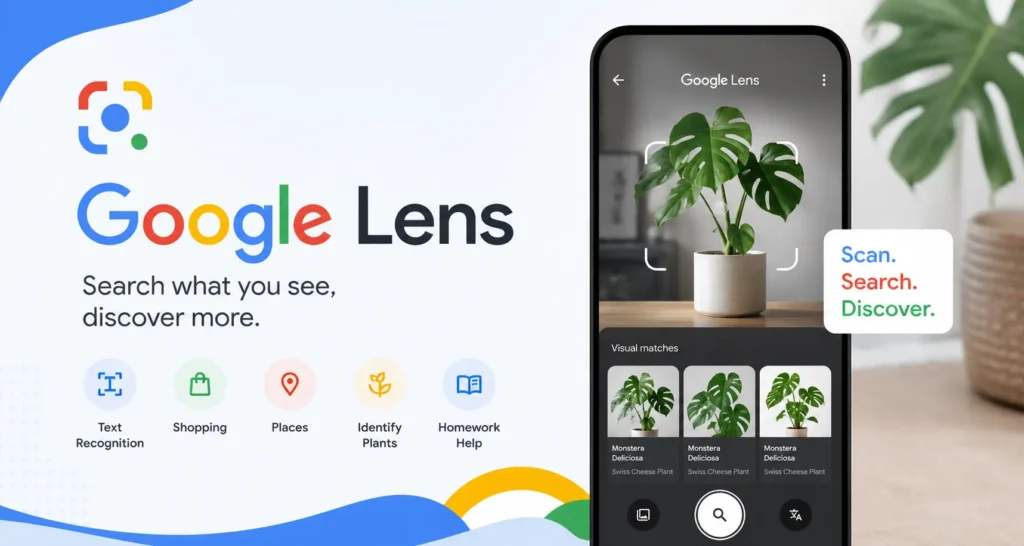
Google Lens is a free visual search tool from Google that lets you search the internet using a photo instead of words. You can use it to identify objects, translate text, scan QR codes, and find products to buy. It works on Android phones, iPhones, and desktop computers through Google Chrome. No extra app is needed on most devices. If Google Lens takes you to an unfamiliar website that asks for your email, use a disposable email address to keep your real inbox safe.
You spotted something interesting. Maybe it is a plant you have never seen before. Maybe it is a product on a shelf with no clear label. Maybe it is text in a foreign language on a restaurant menu. You could try typing a description into Google and hope for the best. Or you could just show it to Google directly.
That is exactly what Google Lens does. It turns your phone camera or any photo into a search engine. Instead of typing words, you point and search. In this guide, you will learn what Google Lens is, what it can do, and how to use it step by step on Android, iPhone, and desktop Chrome. You will also learn what to watch out for when Lens takes you to new websites online.
What Is Google Lens?
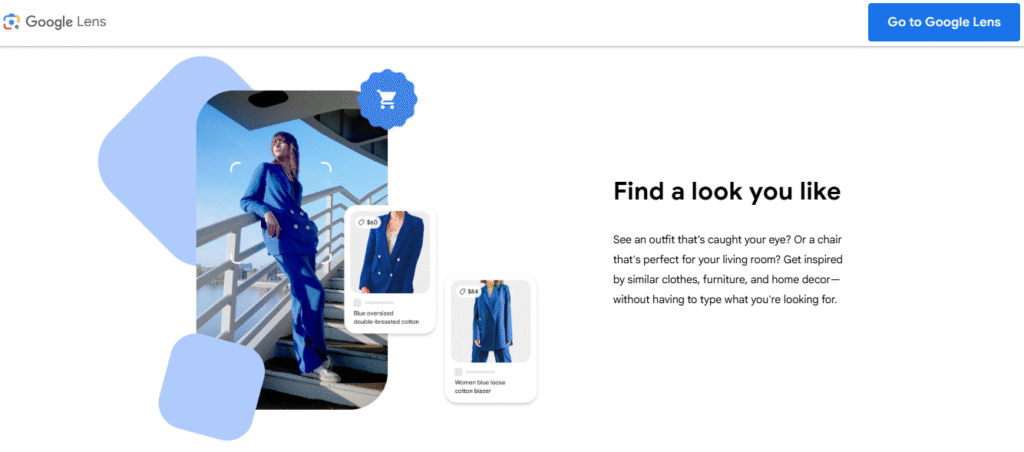
Google Lens is an AI-powered visual search tool built by Google. It uses image recognition technology to analyze photos and find information about what it sees. You can point your phone camera at almost anything and Lens will identify it, find related web pages, or give you actions to take.
Google Lens is not a separate app you have to download on most devices. It is built right into the Google app on Android and iPhone, into Google Photos, and into the Chrome browser on desktop and mobile. Google officially describes it as a tool that helps you “search what you see”.
The tool uses Google’s AI and image recognition systems to match what your camera captures with billions of web images and pages. Results show up fast, usually within a few seconds.
What Can Google Lens Do? (7 Key Features)
Google Lens does a lot more than most people realize. Here are the seven main things it can do:
- Reverse image search – Find where an image appears on the internet and discover similar images
- Identify objects, plants, and animals – Point at a flower, dog, or building and Lens tells you what it is
- Translate text in photos – Scan a sign, menu, or document in a foreign language and read it in your own language
- Copy text from images (OCR) – Extract printed or handwritten text from a photo and paste it anywhere
- Scan QR codes and barcodes – Decode QR codes, product barcodes, and even Wi-Fi labels instantly
- Shop by photo – Scan a product to find where to buy it online and compare prices
- Multisearch – Combine an image with typed words to get more specific results (for example, scan a shirt and type “blue version”)
Google also added AI summaries to Lens results in 2025 and 2026, so you often see a quick AI overview at the top before the regular search links.
How to Use Google Lens on Android
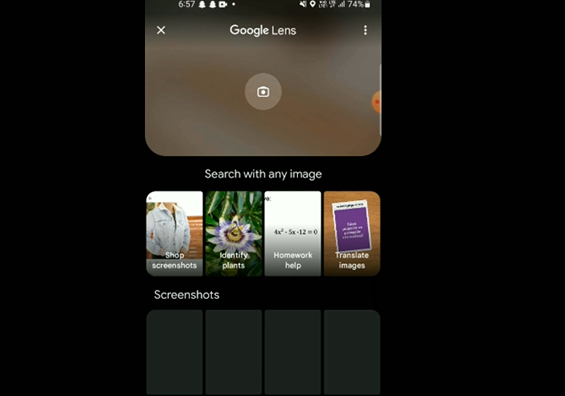
Using Google Lens on an Android phone is quick and simple.
- Open the Google app on your phone
- Tap the camera icon (the Lens icon) on the right side of the search bar
- Allow camera access if asked
- Point your camera at an object, or tap the image icon to upload a photo from your gallery
- Wait one or two seconds while Lens analyzes the image
- Scroll down to see search results, shopping links, or action buttons like Translate or Copy Text
Using Google Lens From Google Photos
You can also open any saved photo in Google Photos, tap the Lens icon at the bottom of the screen, and run a search on that image right away.
How to Use Google Lens on iPhone
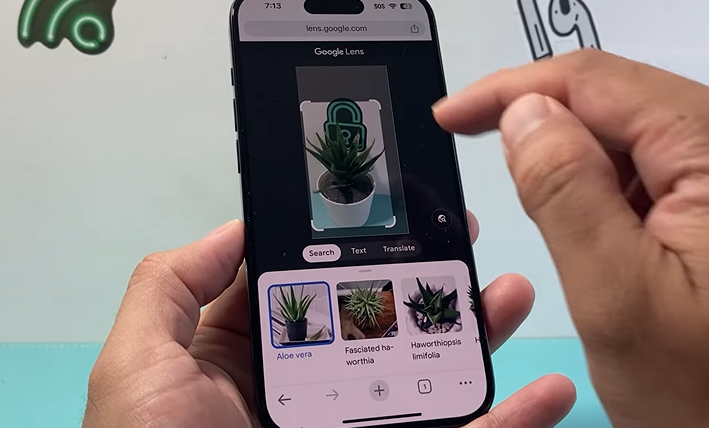
Google Lens is not a default iPhone feature, but you can access it easily through the free Google app.
- Download or open the Google app on your iPhone
- Tap the colorful Google icon or the camera icon inside the search bar
- Tap the Lens icon to start a visual search
- Take a new photo or choose one from your camera roll
- Review your results, which may include web matches, shopping options, or translation tools
Google Lens on iPhone works just as well as on Android for most everyday tasks.
How to Use Google Lens in Chrome on Desktop
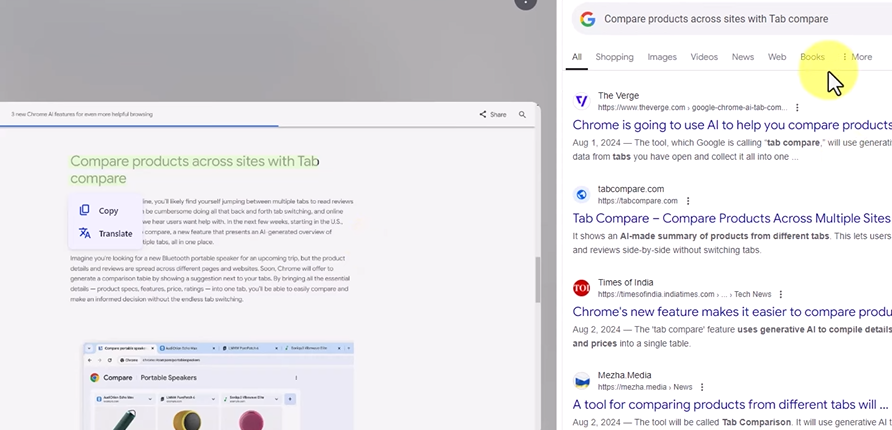
You do not need a phone to use Google Lens. It works on any laptop or desktop computer through Chrome.
Method 1: Right-click any image on a webpage
- Open Google Chrome on your computer
- Find any image on a website
- Right-click the image
- Select “Search image with Google Lens”
- A side panel opens with visual search results
Method 2: Search with an uploaded image
- Go to images.google.com
- Click the camera icon in the search bar
- Upload a photo from your computer or paste an image URL
- Browse your results in the main search page
The right-click method in Chrome is the fastest way to run a reverse image search without leaving the page you are already reading.
Is Google Lens the Same as Reverse Image Search?
Google Lens and reverse image search are related but not the same thing.
Reverse image search finds where an image appears on the internet. Google Lens goes much further. It identifies what is actually inside the image, including specific objects, text, products, and landmarks. Then it gives you context, shopping links, translation options, and similar images all in one place.
Google replaced its older “Search by Image” button with Google Lens as the main tool for image-based search. If you used “Search by Image” in the past, Google Lens is the upgraded version of that feature. It does everything the old tool did, plus a lot more.
What Happens When Google Lens Finds a Sign-Up Page?
When Google Lens identifies a product, brand, or QR code, it often links you to an external website. Many of those websites ask you to create an account or enter your email address before you can see prices, download a file, or claim a discount.
This has become more common since Google added Shopping Ads directly to Google Lens results in 2024. Lens now connects users to third-party product pages, online stores, and promotional sign-up forms from brands they may never have heard of before.
The problem is that some of these websites have unclear privacy policies. Entering your real email address on an unfamiliar site can lead to spam emails, unwanted marketing messages, or your address being shared with other companies.
A simple way to protect yourself is to use a disposable email address for any sign-ups on sites you do not fully trust. A free temporary email from freemail.ai lets you receive any confirmation or download link without giving away your real inbox. You stay in control of your email, even when exploring new websites through Google Lens.
How Accurate Is Google Lens?
Google Lens is highly accurate for common, everyday subjects. It works very well for popular products, well-known landmarks, printed text, common plants and animals, and standard QR codes.
Accuracy drops when you scan rare or unusual objects, low-quality or blurry photos, or items with complex backgrounds. For example, a common sunflower will get a fast and correct result. A rare orchid variety may return a general match rather than a precise one.
A few tips help improve accuracy. Use good lighting when possible. Tap on the specific part of the image you want Lens to focus on instead of scanning the whole frame. Crop your photo tightly around the subject before uploading it.
Google continues to improve Lens with regular AI updates. For most everyday use cases like shopping, translation, and QR scanning, the tool performs reliably and quickly.
Can You Use Google Lens Without the App?
Yes. You do not need to download a separate app to use Google Lens on most devices.
On Android, Google Lens is already built into the Google app and Google Photos. On iPhone, you only need the free Google app, which many users already have installed. On any computer, you can go to images.google.com or use the right-click feature in Chrome without installing anything extra.
Google Lens is also available inside the Google Assistant on many Android devices. Just activate Assistant and say “Use Google Lens” to open it hands-free.
One Last Tip Before You Go
Google Lens is a powerful tool for exploring and discovering the world around you. It connects your camera to the entire web in just a few seconds. But every time Lens leads you to a new website, store, or sign-up page, be careful with your real email address.
Use a free temporary email from freemail.ai the next time a website asks for your email and you are not sure if you can trust it. Your real inbox stays clean and spam-free, no matter where your curiosity takes you online.