

Need to turn a PDF into a JPG image fast? There are plenty of free and paid tools that can do it in seconds. Some work right in your browser with no download needed. Others are desktop apps built for heavy-duty batch work. This list covers the 10 best PDF to JPG converter tools available in 2026, so you can pick the right one for your needs.
PDF files are great for sharing formatted documents. But sometimes you need an image instead. Maybe you want to post a page on social media. Maybe you need to attach it to an email. Or maybe a platform only accepts JPG files.
Whatever the reason, converting a PDF to JPG is simple when you have the right tool. Here are the 10 best options available today.
10 Best PDF to JPG Converter Tools
- iLovePDF : Best for quick online conversion with Google Drive and Dropbox support
- Adobe Acrobat Online : Best for high quality output from the original PDF software maker
- PDF24 Tools : Best for 100% free conversion with no watermark and no file size limit
- Smallpdf : Best for a clean and beginner-friendly drag-and-drop experience
- Zamzar : Best for receiving your converted file directly in your email inbox
- PDF2Go : Best for advanced output control with custom DPI and multiple format options
- Canva : Best for converting and editing your output image in one single workflow
- Wondershare PDFelement : Best for desktop users who need fast batch conversion
- CloudConvert : Best for developers who need API access and large file support
- Convertio : Best for multi-format users who convert more than just PDF files
1. iLovePDF
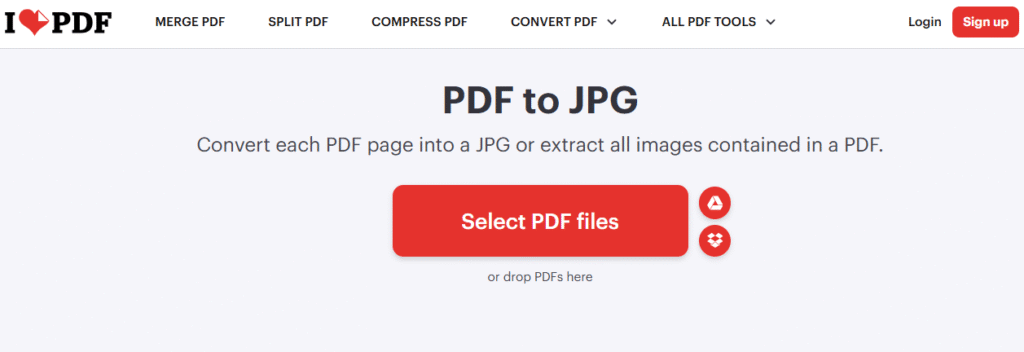
Best for: Quick online conversion with cloud storage support
iLovePDF is one of the most popular online PDF tools in the world. It has a simple drag-and-drop interface that makes it easy for anyone to use. You can upload a PDF from your device, Google Drive, or Dropbox and convert it to JPG in just a few clicks.
iLovePDF gives you two conversion options. You can extract images embedded inside the PDF, or you can convert each full page into a JPG file. This flexibility makes it useful for a wide range of tasks.
Key features:
- Convert full pages or extract embedded images
- Google Drive and Dropbox integration
- Batch conversion available
- Free plan with daily limits
- Mobile app available for iOS and Android
DPI support: Limited
Watermark: No
File size limit: 100 MB on free plan
Price: Free with premium option at around $6.61 per month
2. Adobe Acrobat Online
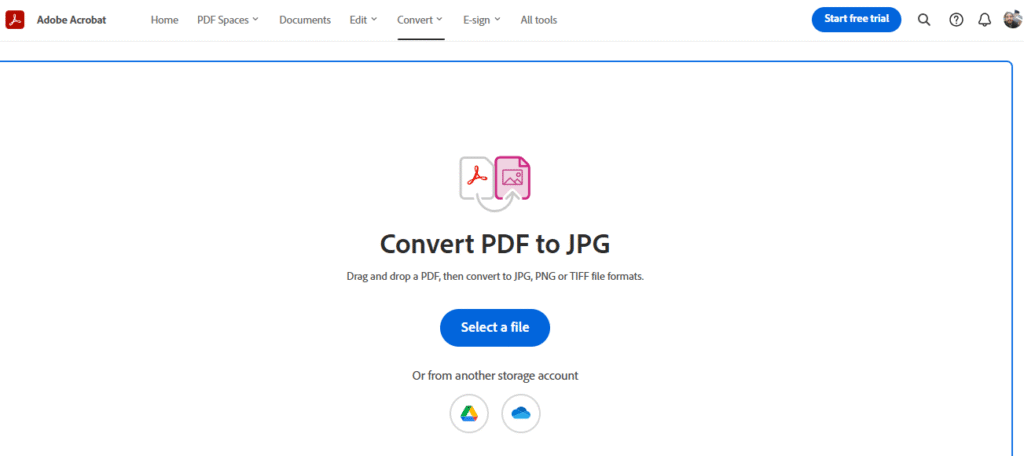
Best for: High quality output from a trusted brand
Adobe Acrobat is the original PDF software. The online version lets you convert PDF to JPG using just a browser. No software download is needed for the online tool. The output quality is excellent because Adobe built the PDF format itself.
The free online version limits you to a few conversions before asking you to sign in. The paid plan unlocks full access to all Acrobat tools including editing, signing, and compressing.
Key features:
- Supports JPG, PNG, and TIFF output formats
- High quality rendering from the original PDF creator
- Works on any browser without installation
- Sign in with a free Adobe account for more conversions
- Also available as a desktop app for Windows and Mac
DPI support: Yes (with Pro plan)
Watermark: No
File size limit: Varies by plan
Price: Free limited use; Pro plan starts at $19.99 per month
3. PDF24 Tools
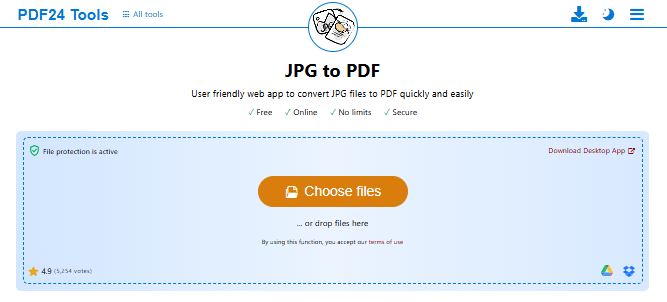
Best for: Completely free conversion with no limits and no watermark
PDF24 is a well-known free tool that converts PDF to JPG with zero restrictions. There are no file size limits. There is no watermark. And you do not need to create an account. It works on any operating system and any browser.
PDF24 also lets you adjust the quality and DPI of your output image before you convert. This gives you control over the file size and sharpness of the final JPG.
Key features:
- No file size limits
- No watermark on output
- DPI and quality settings available
- Works on Windows, Mac, Linux, and mobile
- No installation needed
- Completely free with no premium upsell
DPI support: Yes
Watermark: No
File size limit: None
Price: 100% free
4. Smallpdf
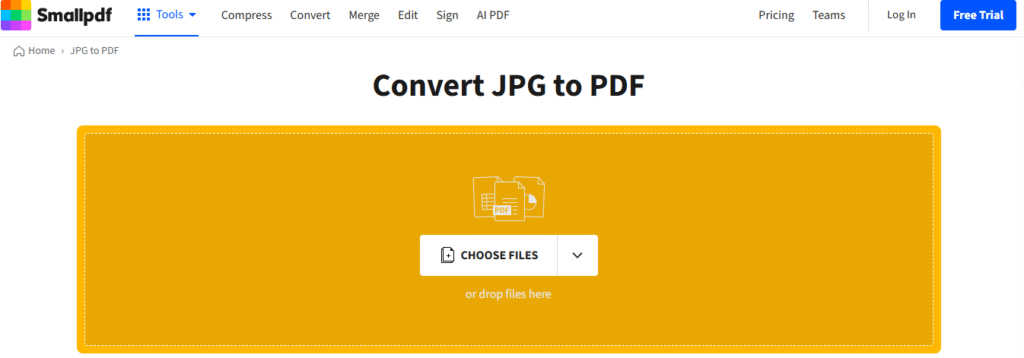
Best for: Clean user interface and reliable daily use
Smallpdf is one of the most user-friendly PDF tools online. The interface is clean, fast, and easy to understand even for first-time users. You simply drag your PDF onto the page and Smallpdf converts it to JPG automatically.
The free plan allows two conversions per day. If you need to convert more files, the pro plan gives you unlimited access and extra tools like PDF compression and password removal.
Key features:
- Simple drag-and-drop interface
- Converts each PDF page to a separate JPG file
- Desktop app available for offline use
- Google Drive and Dropbox integration
- 2 free conversions per day
DPI support: Limited on free plan
Watermark: No
File size limit: None
Price: Free (2 daily); Pro at $9 per month
5. Zamzar
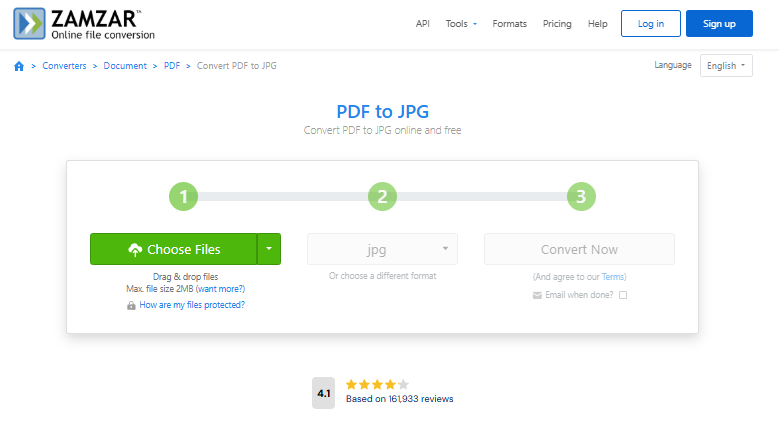
Best for: Email delivery of converted files
Zamzar is a veteran online file converter that has been around since 2006. It supports over 1,200 file format conversions. For PDF to JPG, it offers a straightforward upload and convert process. One unique feature is that Zamzar can send your converted file directly to your email address.
This is especially useful if you are converting a file on someone else’s device and want the result sent to yourself.
Key features:
- Email delivery option for converted files
- Supports over 1,200 file formats
- Simple and clean interface
- File history stored for 24 hours
- API available for developers
DPI support: Limited
Watermark: No
File size limit: 50 MB on free plan
Price: Free with limits; paid plans from $9 per month
6. PDF2Go
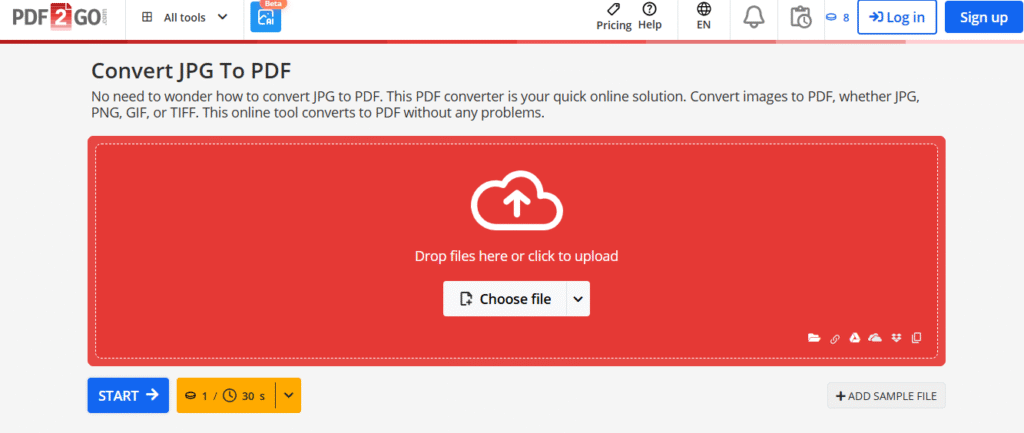
Best for: Advanced output format options and customization
PDF2Go gives you more control over your output than most free tools. When converting PDF to JPG, you can choose from multiple image formats including JPG, PNG, GIF, SVG, TIFF, BMP, TGA, and WebP. You can also set the exact DPI and image quality before converting.
This level of control makes PDF2Go a great choice for designers and professionals who need precise output settings.
Key features:
- Supports 8 different image output formats
- Custom DPI and quality settings
- Works on all browsers and devices
- Secure file handling with auto-deletion
- Batch conversion on paid plan
DPI support: Yes
Watermark: No
File size limit: 50 MB on free plan
Price: Free with limits; pro from $6 per month
7. Canva PDF to JPG Converter
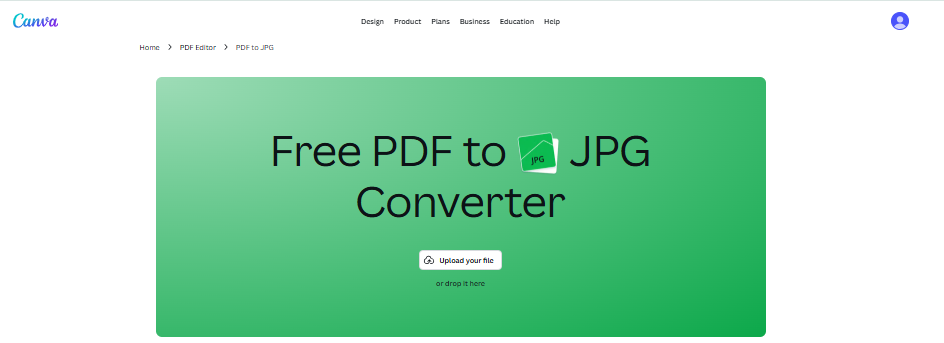
Best for: Converting and editing in one place
Canva is best known as a design tool, but it also offers a free PDF to JPG converter. What makes Canva different is that after you convert your PDF, you can edit the resulting image directly inside Canva. You can add text, crop it, apply filters, or use it in a design.
This is perfect for marketers, social media managers, and content creators who want to go from PDF to a ready-to-post image in one workflow.
Key features:
- Convert and edit the output image in one place
- Easy to share directly to social media
- Free Canva account required
- Works in the browser, no download needed
- Supports JPG and PNG output
DPI support: Limited
Watermark: No (with free account)
File size limit: 100 MB
Price: Free with a Canva account; Pro from $14.99 per month
8. Wondershare PDFelement
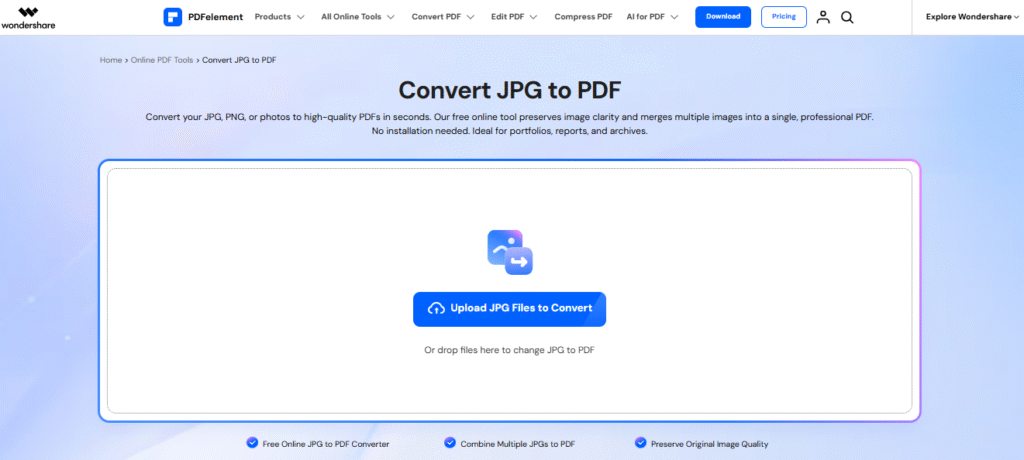
Best for: Desktop users who need batch PDF to JPG conversion
PDFelement by Wondershare is a premium desktop application for Windows and Mac. It is one of the best alternatives to Adobe Acrobat at a lower price point. For PDF to JPG conversion, it supports batch processing, which means you can convert dozens of PDF files to JPG at the same time.
It also lets you convert each page to a separate JPG or merge all pages into one single image. The output quality is excellent, and you have full control over DPI and image size.
Key features:
- Batch conversion of multiple PDF files
- Choose between separate JPGs or one merged image
- Supports PNG, TIFF, BMP, and GIF output too
- Available on Windows, Mac, iOS, and Android
- Includes PDF editing, annotation, and signing tools
DPI support: Yes
Watermark: No
File size limit: None
Price: Free trial available; paid plans from $79.99 per year
9. CloudConvert
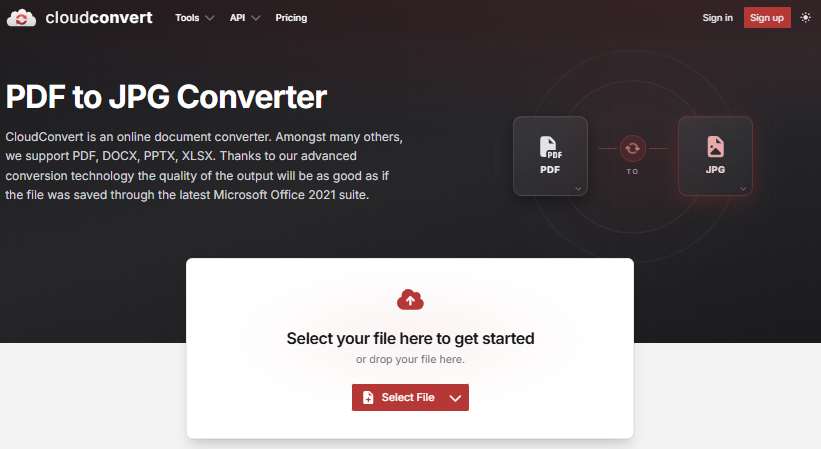
Best for: API integration and developer-friendly batch conversion
CloudConvert is a powerful online file conversion platform trusted by businesses and developers. It supports over 200 file formats. For PDF to JPG conversion, it gives you full control over resolution, quality, page range, and output file name.
CloudConvert also offers an API that developers can use to build PDF to JPG conversion directly into their own apps and workflows. This makes it the top pick for technical users and businesses.
Key features:
- API access for developers and businesses
- Custom page range selection
- Full DPI and quality control
- Supports batch conversion
- Integrates with Google Drive, Dropbox, OneDrive, and Box
- Processes files securely with auto-deletion
DPI support: Yes
Watermark: No
File size limit: 1 GB on free plan
Price: Free (25 conversions per day); paid packages from $9.99
10. Convertio
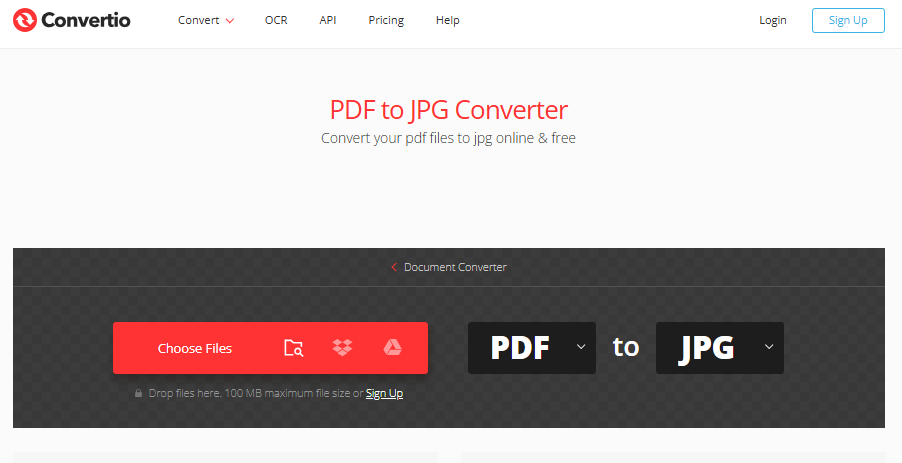
Best for: Multi-format support and simple cloud-based conversion
Convertio is a clean and reliable online converter that handles over 300 different file formats. For PDF to JPG, it works fast and supports input from your device, Google Drive, Dropbox, or a direct URL. The output is clean with no watermark on the free plan.
It is a great general-purpose converter for users who also need to handle other file types beyond just PDF to JPG.
Key features:
- Supports 300 plus file formats
- Upload from device, cloud storage, or URL
- Clean output with no watermark
- Simple one-page interface
- API available for developers
DPI support: Limited
Watermark: No
File size limit: 100 MB on free plan
Price: Free with limits; Pro from $9.99 per month
Quick Comparison Table
| Tool | Free Plan | Watermark | DPI Control | File Limit | Best For |
|---|---|---|---|---|---|
| iLovePDF | Yes | No | Limited | 100 MB | Cloud storage users |
| Adobe Acrobat | Limited | No | Yes (Pro) | Varies | High quality output |
| PDF24 | Yes | No | Yes | None | Totally free no-limit use |
| Smallpdf | Yes (2/day) | No | Limited | None | Ease of use |
| Zamzar | Yes | No | Limited | 50 MB | Email delivery of files |
| PDF2Go | Yes | No | Yes | 50 MB | Advanced format options |
| Canva | Yes | No | Limited | 100 MB | Convert and edit together |
| PDFelement | Trial | No | Yes | None | Desktop batch conversion |
| CloudConvert | Yes (25/day) | No | Yes | 1 GB | Developer API use |
| Convertio | Yes | No | Limited | 100 MB | Multi-format conversion |
How Does PDF to JPG Conversion Work?
When you convert a PDF to a JPG, the converter reads each page of the PDF document and turns it into a pixel-based image. This process is called rasterization. The converter renders every element on the page, including text, graphics, and photos, then saves the result as a compressed JPG file.
The quality of the output image depends mainly on the DPI setting you choose. DPI stands for dots per inch. A higher DPI number means more detail in the image. A lower DPI number means a smaller file size but less sharpness.
Here is a quick DPI guide:
| Use Case | Recommended DPI |
|---|---|
| Web sharing and email | 72 to 96 DPI |
| Standard documents | 150 DPI |
| Print quality output | 300 DPI |
JPG uses a type of compression called lossy compression. This means the file size is small, but a tiny amount of image data is removed during the process. For most everyday uses like email attachments, social media posts, and presentations, this is completely fine.
Why Convert PDF to JPG?
PDF files are great for sharing formatted documents, but they require a PDF reader to open. JPG images open on every device and every platform without any special software.
Here are the most common reasons people convert PDF to JPG:
- Share a document as an image in an email attachment
- Post a page from a PDF on social media or a website
- Embed a PDF page directly into a presentation or slide deck
- Upload a document to a platform that only accepts image files
- View a PDF on a device that does not support PDF viewers
- Extract images from a PDF for use in other projects
JPG files are smaller in size and load faster on web pages compared to PNG files. If your PDF contains mostly photos or general content, JPG is the right output format. If your PDF has text with a transparent background or fine details, PNG is a better choice because it uses lossless compression and keeps every pixel intact.
How to Convert PDF to JPG: Step by Step
Converting a PDF to a JPG takes less than a minute. Follow these steps:
- Click the upload button or drag and drop your PDF file into the converter above
- Wait a moment while the file uploads to the converter
- Choose your output settings such as DPI and image quality if the option is available
- Click the Convert button to start the conversion process
- Download your JPG file or ZIP archive to your device
If your PDF has more than one page, the converter will automatically create a separate JPG file for each page. You will receive a ZIP archive containing all the converted images.
What Settings Should I Choose for Best Quality?
Getting the right output quality depends on two settings: DPI and the JPG quality percentage.
DPI Setting
For web use or email, a DPI of 72 to 96 is enough. It keeps the file size small and loads quickly. For printing or professional use, choose 300 DPI. This gives you sharp, clear output even when the image is printed at a large size.
JPG Quality Percentage
Most converters have a quality slider from 1 to 100. Set it between 85 and 95 for the best balance of image sharpness and file size. Avoid setting it below 70 if your PDF contains small text, because the letters can become blurry or hard to read.
File Size Tip
A single PDF page converted at 150 DPI and 90% quality typically produces a JPG file between 200 KB and 500 KB. At 300 DPI, the same page can reach 1 MB to 3 MB. After you convert, you can use an image compression tool to reduce the JPG file size without losing visible quality.
Is It Safe to Convert PDF to JPG Online?
Yes, it is safe when you use a trustworthy converter. Here is what to look for:
- The tool uses HTTPS encryption so your file travels securely over the internet
- The converter automatically deletes uploaded files after conversion, usually within 1 to 24 hours
- The tool does not require you to create an account or hand over personal information
- The best converters process files directly in your browser without sending anything to a server
Important safety tip: Avoid uploading sensitive documents like legal contracts, medical records, or financial statements to any unknown or unverified online tool. Always check whether the converter states a clear file deletion policy before you use it.
Final Thoughts
All 10 tools on this list can convert a PDF to JPG quickly and easily. The best free online option with no watermark and no file limits is PDF24. If you need desktop power for batch work, go with PDFelement. For developer and business use, CloudConvert is the top pick.
Start with the free options and upgrade only if you need more features. For most everyday users, a free browser-based tool is all you will ever need.