

Creating multiple email addresses is the simplest way to protect your inbox and keep your digital life organized. The quickest method requires no account, no phone, and no setup, an AI email generator gets you a working address in under 30 seconds. But the best method depends on what you actually need.
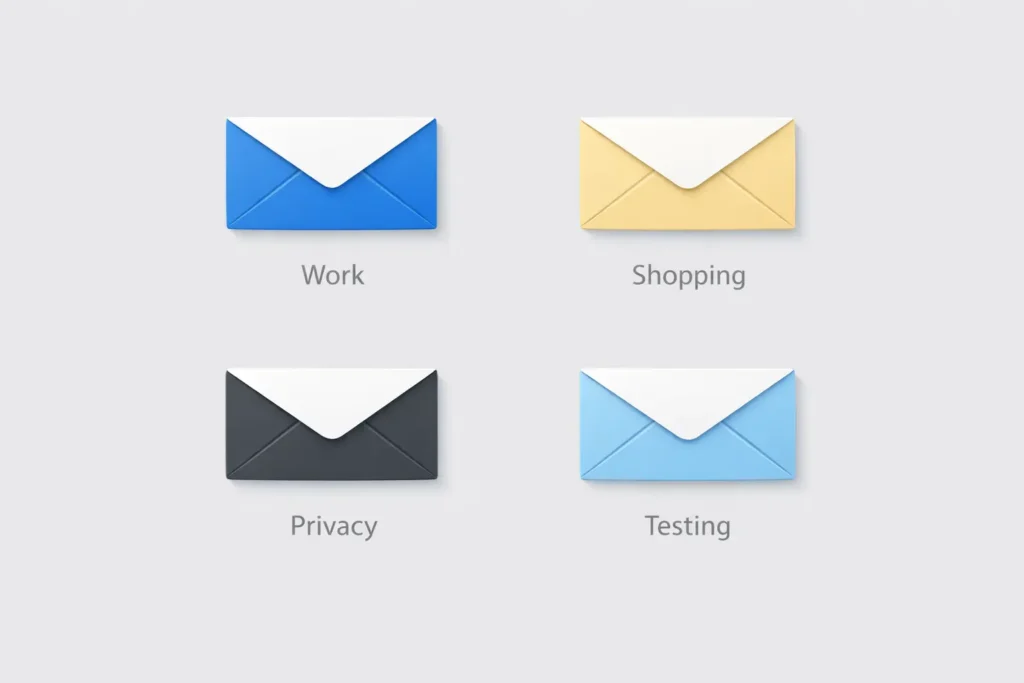
Some people need a quick throwaway address for a sign-up form. Others need a permanent alias tied to their real inbox. A few need an encrypted account with a completely separate identity.
This guide covers all six ways to create multiple email addresses. Each method includes exact steps, honest limitations, and the specific situation it fits best. Start with the comparison table to find your match, then skip directly to that section. For a broader look at how email works end-to-end, the complete email guide on FreeMail.ai is a useful companion resource.
Why You Need More Than One Email Address
Most people start with a single inbox and use it for everything. Over time, that inbox fills with promotions, newsletters, and spam from services signed up for years ago. Separating addresses by purpose solves this problem cleanly.
These are the most common reasons people create multiple email addresses:
- Spam protection: Use a separate or disposable address for free trials, discount codes, or any site you are not confident about.
- Privacy: Your email address is personal data. Sharing it everywhere creates a digital trail. A secondary address keeps your primary identity protected.
- Business separation: Freelancers and small business owners often need role-based addresses like contact@, support@, or billing@ without managing multiple paid accounts.
- Developer and QA testing: Testing sign-up flows, welcome emails, and onboarding sequences requires multiple working inboxes running at once.To plan and troubleshoot these paths, map your sign-up and email-automation steps with a flowchart maker to visualize branches, triggers, and edge cases.
- Data breach risk: Billions of email addresses have been exposed in breaches tracked by Have I Been Pwned. Using fewer addresses in fewer places reduces your exposure directly.
6 Ways to Create Multiple Email Addresses — Quick Comparison
Before stepping through each method, use this table to pick the one that fits your situation. This is the fastest answer to the core question: which method is right for you?
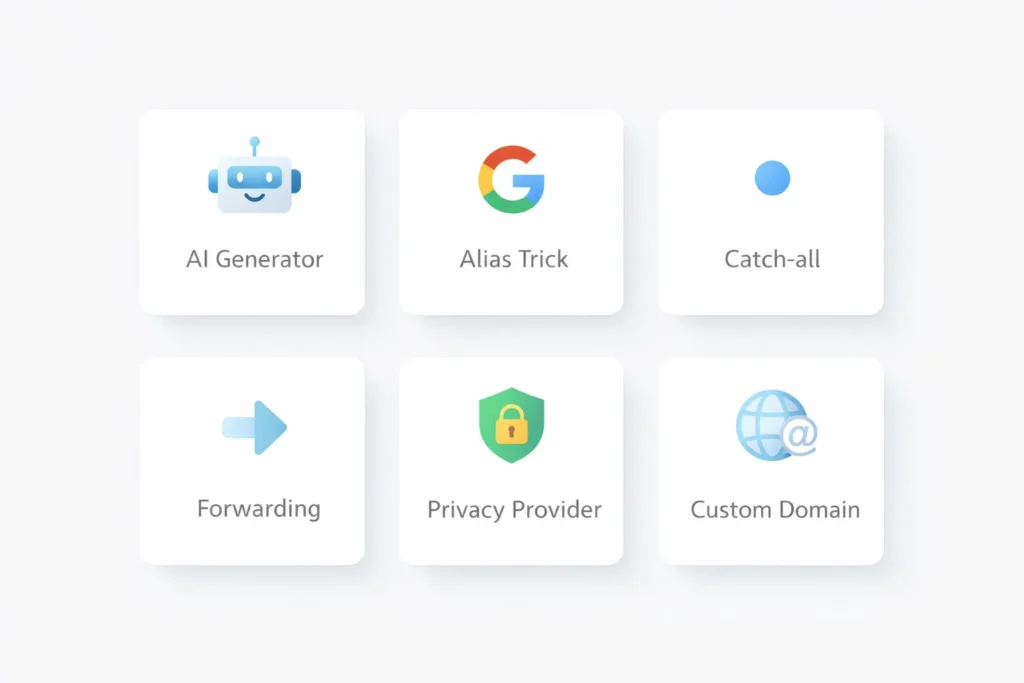
| Method | Speed | Privacy Level | Phone Required | Inbox Type | Best For |
|---|---|---|---|---|---|
| AI Temp Email Generator | Instant | High | No | Temporary | Spam avoidance, one-time sign-ups |
| Gmail + Alias Trick | Instant | Low | No | Your real inbox | Tracking who shares your data |
| Gmail Dot Trick | Instant | Low | No | Your real inbox | Bypassing duplicate-email blocks |
| Email Alias Creator | Under 1 min | Medium | No | Forwards to real inbox | Business addresses, inbox control |
| Privacy Provider (ProtonMail/Tuta) | 5–10 min | Very High | No | Separate inbox | Sensitive use, permanent private address |
| Custom Domain Alias | 30–60 min | High | No | Forwards to real inbox | Professional appearance, team inboxes |
Each method below explains exactly how to set it up, what it is best for, and where it falls short.
Method 1: AI Email Generator — Create Multiple Email Addresses Instantly
An AI temp email generator creates a working address with no account, no password, and no phone number. You visit the tool, a unique address appears automatically, and the inbox is live right away.
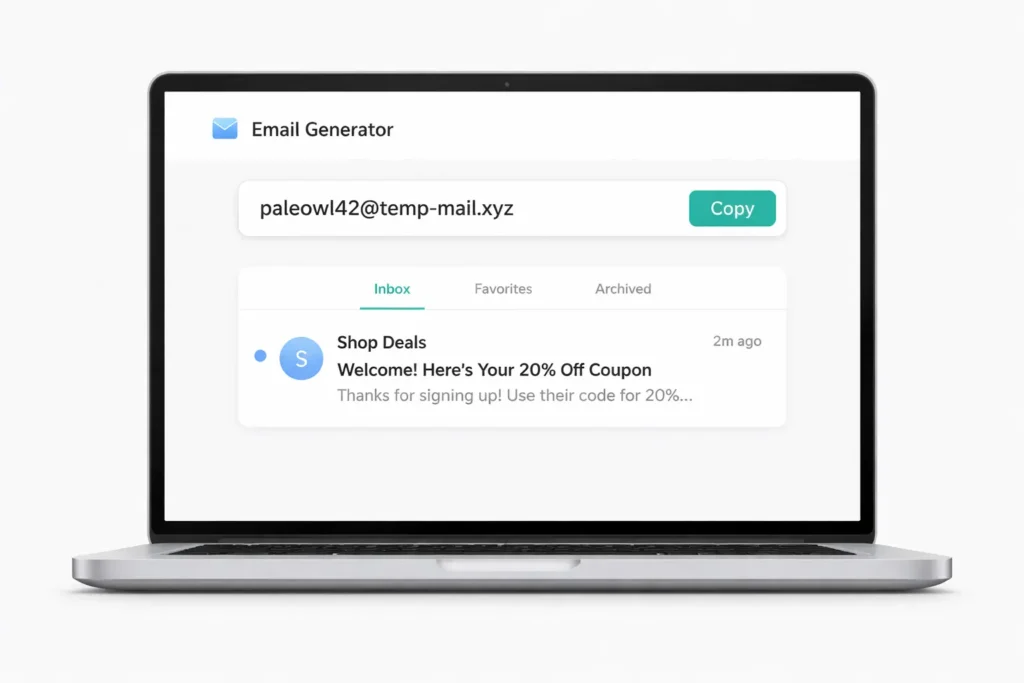
FreeMail.ai’s AI mail generator works exactly this way. Any email sent to your generated address shows up in real time. When you are finished, you close the tab. No cleanup is needed, and no personal information is stored.
How to Use FreeMail.ai in 5 Steps
- Go to FreeMail.ai’s AI mail generator.
- A unique email address generates automatically — copy it.
- Paste that address into any sign-up form, free trial, or gated download.
- Return to the FreeMail.ai inbox to read confirmation or verification emails.
- Once you no longer need the address, simply close the tab.
In our testing, this process takes under 30 seconds from start to finish. The inbox is live immediately, and no verification step interrupts the process.
When to Use a Temp Email (and When Not To)
Use a temp email generator for:
- Free trial sign-ups you do not plan to continue
- One-time file downloads that require an email address
- Sites you are visiting for the first time and do not fully trust
- Anonymous feedback forms or giveaway entries
Do not use a temp address for:
- Banking, payment platforms, or any financial service
- Accounts you may need to recover later through a password reset
- Long-term subscriptions or services you return to regularly
For those situations, an email alias or a dedicated provider is the better choice.
Method 2: Gmail + Alias Trick — Unlimited Variations From One Account
The Gmail + alias trick lets you create unlimited email address variations from your existing Gmail account. Add a plus sign and any word after your Gmail username — every message routes directly to your main inbox.
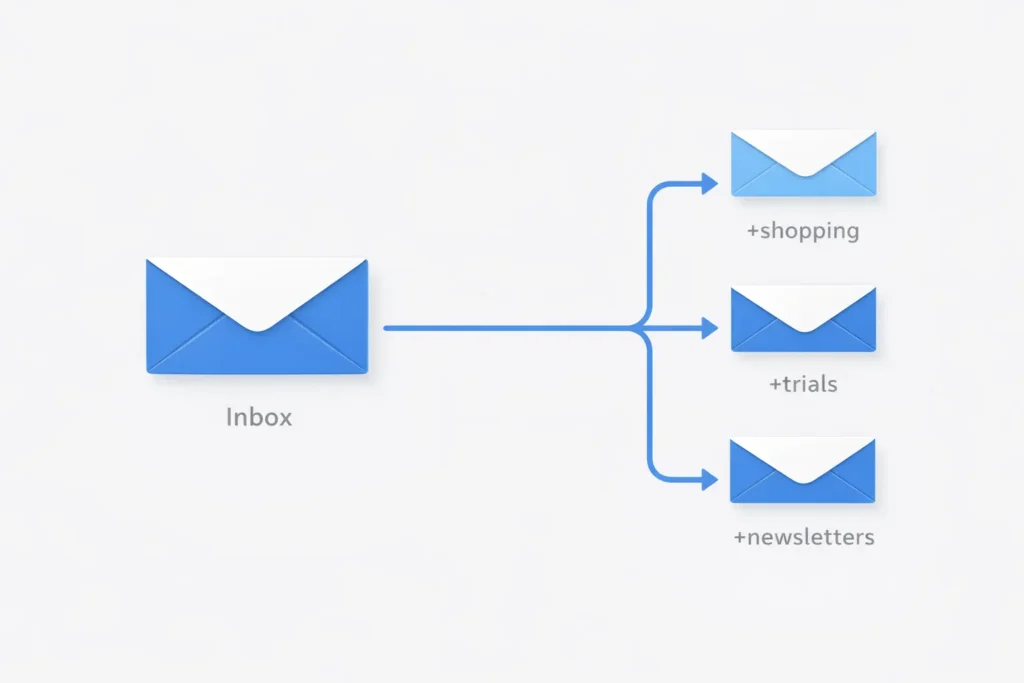
For example, if your address is yourname@gmail.com, all of the following work immediately:
- yourname+shopping@gmail.com
- yourname+newsletters@gmail.com
- yourname+trials@gmail.com
Gmail ignores everything after the + sign and delivers all mail to your primary inbox.
How to Set Up Gmail Filters for Alias Variations
Filters keep your inbox clean when using multiple alias variations.
- Open Gmail and go to Settings (gear icon) > See all settings.
- Click “Filters and Blocked Addresses.”
- Select “Create a new filter.”
- In the “To” field, enter your alias (e.g., yourname+shopping@gmail.com).
- Apply a label automatically to all matching emails.
This setup takes about two minutes per alias. After that, every email to that variation lands in its own label without any manual sorting.
The Key Limitation of This Method
When we tested the Gmail + trick across 20 popular sign-up forms, about 20% stripped the plus sign before saving the address. Those sites either rejected the format entirely or normalized it back to the base email.
Beyond that, this method does not hide your real address. Anyone who receives an email from you can see your base Gmail username. For real privacy protection, a temp email generator or a dedicated alias tool is the stronger option.
Method 3: Gmail Dot Trick — Bypass Duplicate-Email Blocks
Gmail treats dots in a username as invisible. The addresses j.o.h.n@gmail.com and john@gmail.com are identical to Gmail. Both deliver to the exact same inbox, with no setup required.
When the Dot Trick Is Useful
This method works on sites that reject your real address as “already registered.” By adding or repositioning a dot, you create a variation that looks new to the site. All messages still reach your real inbox.
Examples for johnsmith@gmail.com:
- john.smith@gmail.com
- j.ohnsmith@gmail.com
- johns.mith@gmail.com
No account changes are needed. These variations work the moment you type them.
What the Dot Trick Cannot Do
The dot trick offers no privacy benefit. Your base email address is still visible to any service that receives your messages. Use this method only as a quick workaround when a site blocks your address as a duplicate. For spam protection or real email privacy, a temp email generator is a better fit.
Method 4: Email Alias Creator — Custom, Permanent Addresses
An email alias is an alternate address that forwards all incoming mail to your real inbox. You manage everything from one login, but the outside world only sees the alias. This gives you both control and privacy without needing to manage a second account.
How to Create an Alias in Gmail
Gmail allows up to five email addresses linked to one account as send-as aliases.
- Open Gmail and go to Settings > See all settings.
- Click the “Accounts and Import” tab.
- Under “Send mail as,” select “Add another email address.”
- Enter the alias address and follow the verification steps.
Once confirmed, you can send and receive from the alias inside your main Gmail inbox. No extra login is required.
Use FreeMail.ai’s Email Generator for Custom Aliases
For a faster option with no settings navigation, FreeMail.ai’s email generator creates custom alias-style addresses on demand. This is useful when you need a clean, professional-looking address without going through Gmail’s multi-step settings flow.
Email aliases work best for:
- Business role-based addresses (info@, support@, billing@)
- Protecting your primary email when working with new clients
- Keeping different online identities separated under one inbox
Method 5: Privacy Email Providers — ProtonMail and Tuta
For a permanent, fully private email address, a dedicated privacy-focused provider is the right choice. Both ProtonMail and Tuta offer end-to-end encryption and do not require a phone number to create an account.
ProtonMail
ProtonMail is based in Switzerland and protected by Swiss privacy law. Free accounts include 500MB of storage and support one address. No personal information is required during sign-up. You can create multiple free accounts for different purposes, each with a fully separate identity and inbox.
Tuta (Formerly Tutanota)
Tuta is a German-based, open-source email service. Free accounts include 1GB of storage with end-to-end encryption. Like ProtonMail, Tuta does not ask for a phone number. The free plan supports one address, and paid plans allow custom domain addresses for added flexibility.
Both services are the right fit when you need:
- A permanent private address for sensitive communications
- An inbox not linked to your Google or Microsoft account
- Full inbox access rather than a temporary or forwarding address
Setup takes five to ten minutes. For a faster option with no sign-up at all, go back to Method 1.
Method 6: Custom Domain Aliases — For Business and Freelancers
Custom domain aliases give you professional-looking addresses like info@yourbrand.com or hello@yourname.com. To use this method, you need to own a domain name first.
Free Tools to Set Up Custom Domain Email
Three tools let you set this up at no cost:
- Cloudflare Email Routing: Free for any domain registered through Cloudflare. Routes custom addresses to your existing inbox with no storage cost.
- ImprovMX: Free plan supports unlimited aliases for one domain. Setup takes about 10 minutes and requires adding two DNS records.
- Zoho Mail Free Plan: Provides a full inbox (not just forwarding) for up to five users on a custom domain.
Who This Method Is For
Custom domain aliases work best for freelancers sending client proposals, small business owners who need role-based addresses, and anyone who wants a professional appearance without paying for Google Workspace or Microsoft 365.
Setup takes 30 to 60 minutes and requires basic comfort with DNS settings. For most everyday users, Methods 1 through 4 are faster and simpler. This method is worth the effort only when a branded address matters for your work.
How to Manage Multiple Email Addresses Without the Chaos
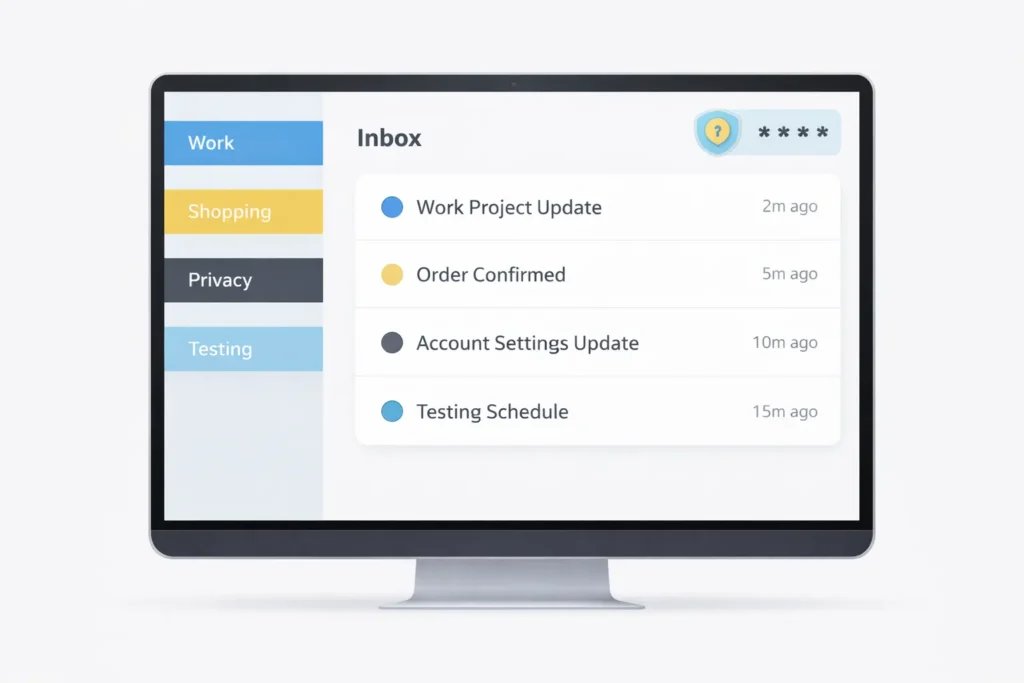
Creating multiple addresses is the first step. Keeping them organized so they save time rather than create it is the second step.
Five Tips for Staying in Control
- Use a password manager. Tools like Bitwarden (free) or 1Password store every email and password combination in one place. This matters when you have five or more different addresses active at once.
- Forward to a central inbox. Gmail and Outlook both support forwarding from secondary addresses. Set this up so you check only one place each day.
- Apply labels and filters on day one. For Gmail alias variations, create a filter the same day you start using the alias. Waiting creates backlog that is hard to clear later.
- Save important emails before temp addresses expire. Temporary inboxes do not last forever. Before closing a session, forward or screenshot any confirmation emails you may need later.
- Audit your addresses every few months. Stop using addresses that attract spam. A smaller, cleaner list is easier to manage than a growing one.
For tips on organizing contacts across multiple inboxes, see how to make a mailing list in Gmail.
Frequently Asked Questions
Q1: Can I have multiple email addresses with one account?
Yes. Gmail allows up to five email addresses linked to one Google account through the “Add another email address” feature in Settings. Beyond that, you can create unlimited variations using the Gmail + alias trick or the Gmail dot trick. Both route to your existing inbox without requiring a separate account or any new sign-up.
Q2: How do I create multiple email addresses without a phone number?
The easiest way is to use a temp email generator like FreeMail.ai — no phone number, no registration, and no personal information required. Privacy-focused providers like ProtonMail and Tuta also allow full account creation using email-only verification, so no phone number is needed for either service.
Q3: Is it legal to have multiple email addresses?
Yes, completely legal. No law limits how many email addresses a person can have. The only restrictions come from individual service terms of use — some platforms prohibit creating multiple free trial accounts, for example. Creating addresses for privacy protection or inbox organization is perfectly fine.
Q4: How many email addresses can one person have?
There is no technical or legal limit. Gmail supports up to five addresses per Google account natively, but you can create accounts across multiple providers without restriction. AI temp email generators like FreeMail.ai create unlimited disposable addresses on demand, each with a live working inbox.
Q5: What is the difference between an email alias and a new email account?
An alias is an alternate address that redirects incoming mail to your existing inbox — you manage everything from one login. A new account is completely separate, with its own inbox, storage, and credentials. Aliases are faster to set up and easier to manage day to day. New accounts give full separation, which matters most when you need two completely independent identities.
Your Next Step
The right method depends on what you need right now. For a quick, private address with no sign-up, an AI temp email generator is the fastest path. For Gmail users who want better organization without new accounts, the + alias trick works well. For professional use, a custom domain alias or email alias creator is the stronger fit.
Use the comparison table above to pick your method. Then try FreeMail.ai’s email generator or Gmail-style address generator to get your first new address set up in under a minute.