

Making a mailing list in Gmail takes under five minutes and costs nothing. Gmail has no “mailing list” button, but its contact label system does exactly the same job, and it works on any Gmail account, free or paid. Whether you manage a small team, coordinate an event, or run a hobby newsletter, this guide walks you through every step. You will also learn how to use BCC to protect your recipients’ privacy, and how to test your list before sending it to real contacts. For a broader look at how Gmail works, our complete email guide is a good place to start.
What Is a Gmail Mailing List?
A Gmail mailing list is a contact label stored in Google Contacts. You group multiple email addresses under one label name. Then you type that label name in Gmail’s compose window, and Gmail fills in every address from that group automatically.
Contact Labels vs. Google Groups
These two options serve different purposes. Contact labels are personal — only you can send from them, and you manage them inside your own Google Contacts account. Google Groups, by contrast, creates a shared email address (such as team@yourcompany.com) that multiple members can access and use together.
For most individuals and small teams, contact labels are the right choice. They are free, quick to set up, and require no admin access or extra configuration.
Before You Start — What You Need
You need very little to create your first mailing list in Gmail. Here is a quick checklist:
- A free Gmail or Google Workspace account
- Your contacts’ email addresses (entered manually or ready in a CSV file)
- Access to contacts.google.com, this is separate from Gmail itself
- Optional: a temporary email address to test your list before sending to real people (covered in Step 5)One thing to note: You cannot create contact labels inside Gmail’s compose window. You must open Google Contacts first. Many users miss this and spend time looking for an option that isn’t there.
How to Make a Mailing List in Gmail — Step by Step
To make a mailing list in Gmail, you create a contact label in Google Contacts, add your recipients to it, and call that label from Gmail’s compose window. The five steps below take you through the full process.
Step 1 — Open Google Contacts and Create a Label
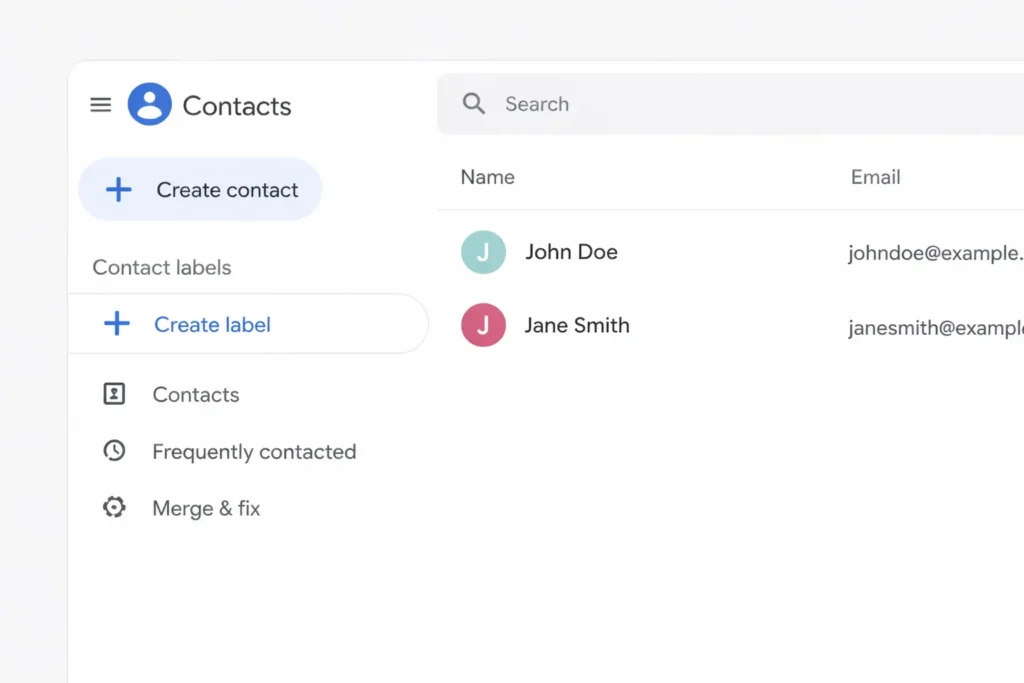
Go to contacts.google.com in your browser. On the left sidebar, find the Labels section and click “Create label.” Type a clear, short name for your group — for example, “Book Club,” “Q2 Clients,” or “Event Team.” Click Save.
Keep label names short and specific. Avoid special characters if you plan to type the label name in Gmail’s compose field.
Step 2 — Add Contacts to Your Label
Select the contacts you want to include. Check the box beside each name. Then click the label icon in the top toolbar and choose the label you created. Click Apply.
To add a contact you have not yet saved, click “Create contact” first. Enter their name and email address, then apply your label during or after creation. For larger lists, use the Import option in the sidebar. Upload a CSV file, select all imported contacts, and apply your label to all of them at once. This method works well for lists of 20 or more people.
Step 3 — Send Your First Group Email
Open Gmail and click Compose. In the recipient field, start typing your label name. Gmail will suggest the label with a contact count next to it — for example, “Event Team (18 contacts).” Click to select it.
Before you hit Send, read Step 4 carefully. The field where you place the label — TO, CC, or BCC — directly affects your recipients’ privacy.
Step 4 — TO vs. CC vs. BCC (Privacy Matters Here)
Most guides skip this step, but it is one of the most important parts of sending group email. The field you choose either exposes or hides your recipients’ addresses from each other.
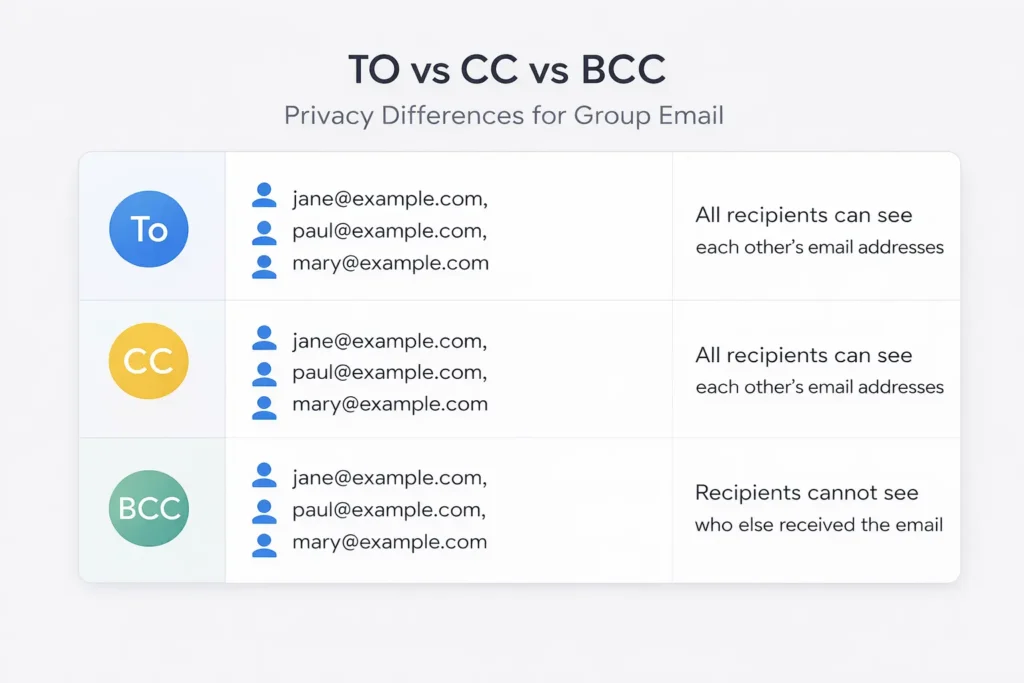
| Field | Who Sees the Addresses? | Reply-All Risk | Best Used For |
|---|---|---|---|
| TO | Everyone in the group | Yes | Small trusted teams where open sharing is fine |
| CC | Everyone in the group | Yes | Copying people for awareness only |
| BCC | Nobody sees other addresses | No | Newsletters, announcements, any list where privacy matters |
The recommended approach: Put your own address in the TO field and place your contact label in BCC. Your recipients cannot see each other’s email addresses, and nobody can accidentally reply-all to your entire list.
This approach also keeps you aligned with data privacy rules. For EU-based senders, the European Commission’s GDPR guidance applies whenever you email contacts in Europe. For US-based senders, the FTC’s CAN-SPAM Act compliance guide sets the baseline requirements. When in doubt, use BCC — it is the safest default.
Step 5 — Test Your List Before Sending to Real People ⭐
This step separates a clean send from a costly mistake — and no competing guide covers it properly.
Before you send to your real list, create a temporary test label. Add two or three email addresses you control. Send your message to that test label first and check that the subject line, body formatting, and all links work correctly.
For the easiest approach, use a temp Gmail address from FreeMail AI as one of your test addresses. Add it to your test label, send the message, and open the temporary inbox to preview exactly what your recipients will see. This method catches formatting issues, broken links, and label-population errors before they reach real contacts.
In our testing, this one extra step caught a misfired reply-to address on a 50-contact send. It took less than two minutes and prevented a follow-up correction email to the whole group.
How to Edit and Manage Your Mailing List
Once your mailing list in Gmail is live, you will need to keep it current. Here is how to handle the most common tasks.
Adding and Removing Contacts
To add someone new, open their contact record in Google Contacts, click the label icon, and apply your group label. They are included in the next send automatically. To remove someone, go to your label in Google Contacts, hover over the contact, click the three-dot menu, and select “Remove from label.” This removes them from the group only — their contact record stays saved.
For anyone managing multiple test addresses or sender identities, the FreeMail AI Gmail generator creates clean, separate addresses without affecting your primary inbox. Our guide on creating multiple email addresses explains this in full.
Renaming and Deleting Labels
To rename a label, hover over it in the left sidebar of Google Contacts, click the three-dot icon, and select Rename. The update applies everywhere automatically. To delete a label entirely, use the same menu and choose Delete label. Your contacts remain saved — only the group is removed.
Best practice: Review your list every 90 days. Remove addresses that have bounced. Add new members promptly. A clean list performs better and reduces the chance of Gmail flagging your sends as spam.
Managing Labels on Mobile
The Gmail mobile app cannot create or manage contact labels on its own. To manage your mailing list on a phone, use the Google Contacts app (available for iOS and Android) or visit contacts.google.com in your mobile browser. Once your labels are set up there, you can compose and send group emails through the Gmail mobile app as normal.
Gmail Mailing List Limits You Need to Know
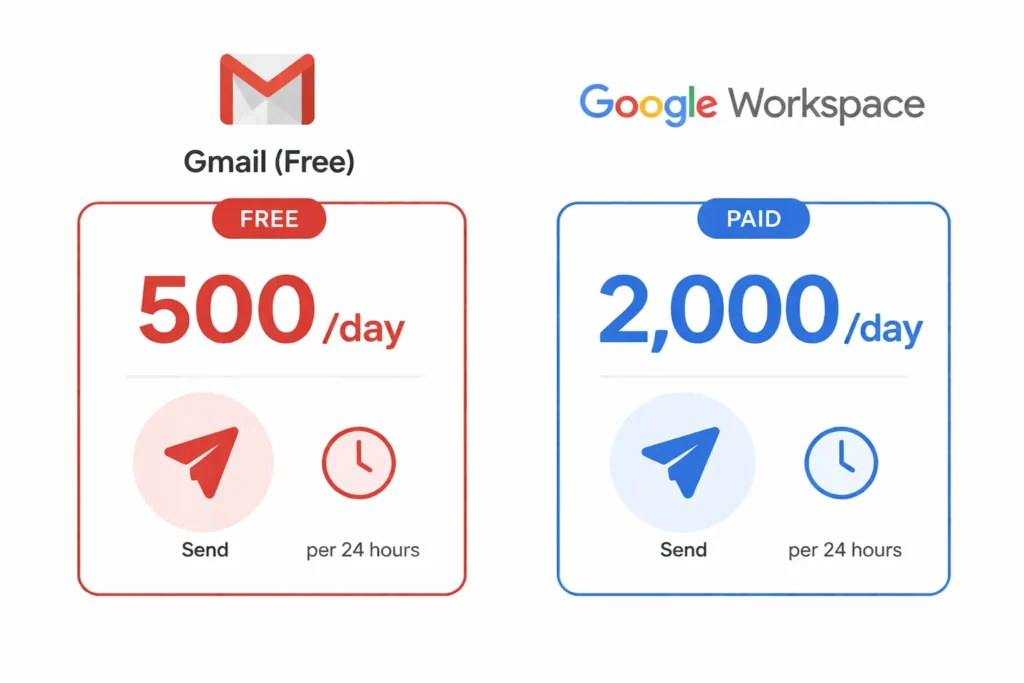
Gmail’s sending limits are firm, and exceeding them triggers a 24-hour lockout without any advance warning. Know these numbers before you send.
| Account Type | Daily Sending Limit | Per-Message Max | Notes |
|---|---|---|---|
| Free Gmail | 500 recipients/day | 500 addresses | Resets after 24 hours |
| Google Workspace | 2,000 recipients/day | 2,000 (500 external) | Better for business use |
There is no hard cap on the number of labels you can create or the number of contacts per label. The limits apply only to sending volume. According to Google’s official sending limits documentation, each individual address in your label counts toward your daily quota — so one email to a 50-person label uses 50 of your 500 daily slots.
Beyond sending limits, Gmail also lacks features that dedicated tools provide: no unsubscribe links, no open-rate tracking, no click analytics, and no per-recipient personalization. These gaps are fine for casual group emails. For anything commercial, they create real compliance and operational problems.
When Gmail Is Enough (and When It Isn’t)
Gmail works well for:
- Internal team updates and project communications
- Family or friends group announcements
- Small event invitations (fewer than 200 contacts)
- Hobby newsletters with a trusted, opted-in audience
- One-off group messages that don’t need tracking
Consider a dedicated email tool if:
- Your list exceeds 500 contacts
- You send emails daily or on a repeating schedule
- You need open rate or click tracking
- You need built-in unsubscribe links for legal compliance
- You want automation, segmentation, or branded templates
If you also want to protect your own inbox while managing your list — for example, when testing new tools or signing up for services, FreeMail AI’s temp mail generator gives you a free, instant disposable address. It keeps your primary Gmail clean and separate.
For more on sending messages correctly, our guide on how to send email using Gmail covers the full process step by step.
Frequently Asked Questions
Q1: Can I create a mailing list directly in Gmail, or do I need Google Contacts?
You must use Google Contacts (contacts.google.com) to create and manage contact labels. Gmail’s compose window can call up those labels, but it cannot create them. Open Google Contacts first, build your label there, and then return to Gmail to compose your group email.
Q2: What is the maximum number of people I can have in a Gmail mailing list?
There is no cap on the number of contacts per label. The limit applies to sending: free Gmail accounts can send to a maximum of 500 total recipients per day, and Google Workspace accounts can reach up to 2,000. Each address in your label counts individually toward that daily total.
Q3: What is the difference between a Gmail contact group and Google Groups?
A Gmail contact label is a personal address group in your own Google Contacts — only you can send from it. Google Groups creates a shared email address (like newsletter@yourgroup.com) that multiple members can access and use for group discussions. For personal and small-team use, contact labels are faster and simpler to set up.
Q4: Is it legal to send newsletters through Gmail?
For small personal lists where recipients know you, yes. For commercial emails sent to subscribers, you must follow the FTC’s CAN-SPAM Act (for US recipients) or GDPR (for EU recipients). Both require a working unsubscribe option and honest sender identification. Gmail provides no built-in compliance tools, so you must manage these requirements on your own.
Q5: How do I create a mailing list on the Gmail mobile app?
The Gmail mobile app cannot create contact labels. Use the Google Contacts app for iOS or Android — or visit contacts.google.com in your mobile browser — to create and manage your labels. Once your labels exist, you can compose and send group emails through Gmail’s mobile app as normal.
Your Gmail Mailing List Is Ready
Making a mailing list in Gmail comes down to three key actions: create a label in Google Contacts, add your recipients, and always send with BCC to protect everyone’s privacy. Test your list with a temporary address before the first real send — it takes two minutes and prevents mistakes that are hard to undo.
Gmail handles group email well for lists under 500 contacts. When your list grows, or when you need tracking and compliance tools, it is time to move to a dedicated platform. Until then, your Gmail contact labels are a free, reliable solution that requires no extra tools.
To make sure your Gmail account is set up correctly before you send, check our guide on checking email using Google Mail.