

You archived an email in Gmail, and now it has vanished from your inbox.
This is one of Gmail’s most common frustrations. The good news is that archived emails are never deleted. Gmail removes the Inbox label from the message and moves it to All Mail, a folder that holds every email in your account. The problem is that Gmail shows no standalone “Archive” tab anywhere in its interface, so most users look in the wrong place.
This guide shows you exactly how to find archived mail in Gmail across desktop, Android, and iPhone. You will also get a search operator cheat sheet to locate any archived email in seconds. For a broader look at how Gmail works, the complete email guide on FreeMail AI covers every core Gmail feature in one place.
What “Archived” Actually Means in Gmail
Archiving an email in Gmail does not send it to a separate archive folder. It removes the Inbox label from the message — and the email stays in All Mail alongside every sent and received message in your account.
Gmail has no dedicated “Archive” section in the sidebar. This is why so many users cannot find archived emails — they are looking for a folder that simply does not exist. According to Google’s official Gmail support documentation, archiving is a label action, not a storage action. With over 1.8 billion active Gmail users worldwide (Statista, 2024), this is one of the most widely misunderstood features in any email platform.
Quick fact: Your archived email is completely safe. It stays in All Mail with no expiry date until you manually delete it.
How to Find Archived Mail in Gmail on Desktop
The fastest method: Type in:archive in Gmail’s search bar and press Enter. This shows only your archived emails — no inbox messages, no sent mail mixed in.
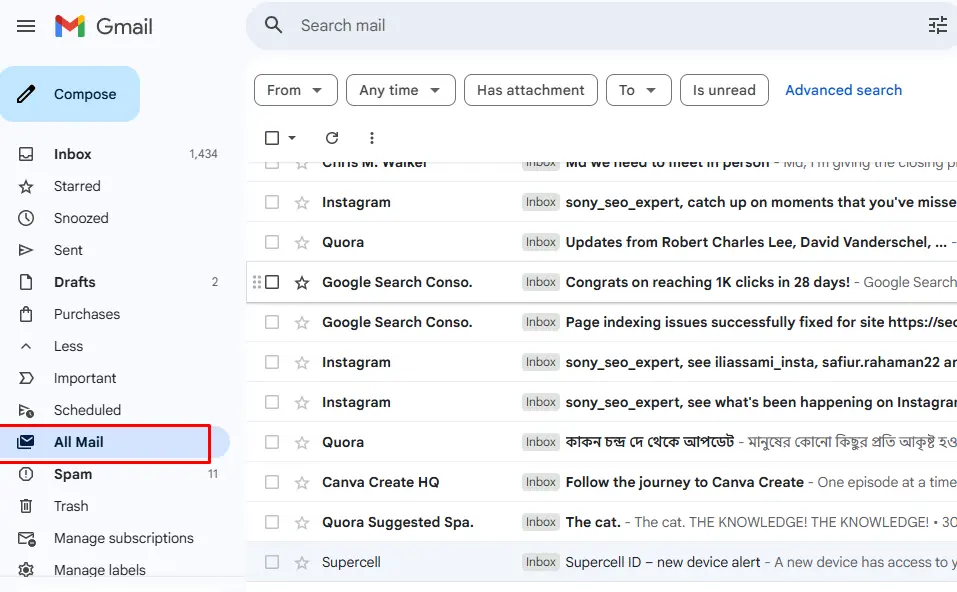
Step-by-Step: Using the All Mail Folder
- Open Gmail.com in your browser.
- Look at the left sidebar and scroll down.
- Click More to expand the full label list.
- Select All Mail.
- Browse the list — archived emails appear without an Inbox label tag.
- Use the search bar to narrow results by sender, subject, or date.
This method shows every archived email stored in your account, sorted by date by default.
What to Do If All Mail Is Not in the Sidebar
All Mail is hidden by default in Gmail. Click More at the bottom of the label list to expand the hidden options.
If All Mail still does not appear, go to Settings (gear icon) → See all settings → Labels tab → find All Mail → set it to Show. In our experience, this one-time settings fix is the step most guides skip entirely — and it solves the problem permanently.
How to Find Archived Emails in the Gmail Mobile App
On mobile, tap the ☰ hamburger menu at the top left of the Gmail app, scroll down, and tap All Mail. Your archived emails are listed there, sorted by date.
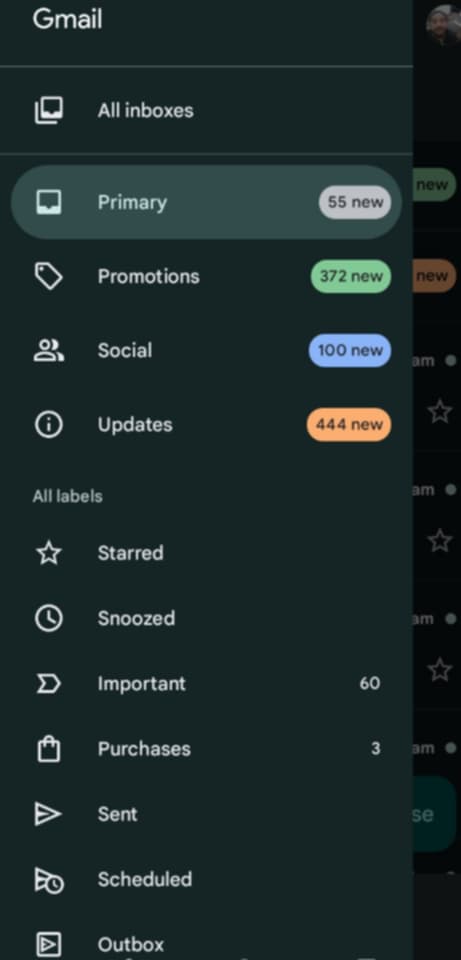
On Android
- Open the Gmail app on your Android device.
- Tap the ☰ icon in the top-left corner.
- Scroll down in the side menu to find All Mail.
- Tap All Mail — archived emails appear without an Inbox tag.
- Type
in:archivein the app’s search bar to filter only archived messages.
You can also combine operators in the search bar, such as in:archive from:sender@email.com.
On iPhone (iOS)
The Gmail app on iPhone follows the same path. Open Gmail → tap ☰ → scroll to All Mail → tap to view your archived messages.
The in:archive operator works on iOS the same way it does on desktop. So when you remember a word or sender from the email, a quick search finds it faster than scrolling.
“All Mail” Is Not Showing in My Gmail App — Fix
Some users find All Mail missing from the Gmail app side menu entirely. This is a display setting issue — your emails are safe and untouched.
To fix it: Open the Gmail app → tap Settings from the ☰ menu → tap your account name → tap Labels → find All Mail → tap it → select Show in message list. After saving, All Mail appears in your sidebar on every session going forward. A thread in Reddit’s r/GMail community confirms this hidden setting is the top reason mobile users think their archived emails are lost.
If you want to keep your main inbox clean from sign-up clutter, a temp Gmail address lets you separate personal emails from disposable registrations — so archiving stays intentional, not accidental.
Gmail Search Operators to Find Archived Emails Fast
Gmail’s search operators are the fastest and most precise way to locate any archived email on any device. Type them directly into the search bar, they work the same on desktop, Android, and iPhone.
When we tested these operators across desktop Chrome and the Gmail Android app, in:archive located target emails in under five seconds. Scrolling through All Mail on a large account took several minutes for the same task. The table below is a complete, copy-paste-ready reference.

Gmail Archive Search Operator Cheat Sheet
| Operator | What It Does | Example |
|---|---|---|
in:archive | Shows only archived emails | in:archive |
in:all | Shows all emails including archived | in:all subject:invoice |
in:archive from:X | Archived emails from one sender | in:archive from:john@gmail.com |
in:archive after:YYYY/MM/DD | Archived after a specific date | in:archive after:2024/06/01 |
in:archive "keyword" | Archived emails containing a word | in:archive "contract" |
in:archive has:attachment | Archived emails with attached files | in:archive has:attachment |
Bookmark this table or copy the operators into a notes app. They work for emails archived years ago just as reliably as ones archived last week. For more on navigating your Gmail inbox with precision, see the guide on how to check email using Google Mail.
How to See ONLY Archived Emails (Not Everything in All Mail)
Type in:archive -in:inbox -in:sent -in:draft in Gmail’s search bar. This removes inbox, sent, and draft messages from the results — showing only archived emails.
All Mail displays every message in your account at once — inbox, sent, drafts, and archived all mixed together. Gmail provides no built-in button to show only archived messages. The search string above is the only way to get a clean archive-only view.
A Reddit thread in r/developersIndia received 79 upvotes asking specifically for this feature — the community answer points to this same manual operator, because Gmail has never added a native UI button for it. Save this as a browser bookmark for one-click access:
https://mail.google.com/mail/u/0/#search/in%3Aarchive+-in%3Ainbox+-in%3Asent+-in%3Adraft
How to Unarchive an Email in Gmail (Move Back to Inbox)
Direct answer: Open the archived email and click Move to Inbox in the top toolbar. On mobile, tap the ⋮ three-dot menu and select Move to Inbox.
Unarchiving on Desktop
- Find the email using All Mail or by searching
in:archive. - Click the email to open it.
- Click the folder-with-arrow icon (Move to Inbox) in the top toolbar.
- The email returns to your inbox right away.
To unarchive multiple emails at once: go to All Mail → check the boxes next to each email → click Move to in the top menu → select Inbox. This method works for bulk restoration of dozens of emails at a time.
Unarchiving on Mobile
- Find the email using ☰ → All Mail or by searching
in:archive. - Open the email.
- Tap the ⋮ menu in the top-right corner.
- Tap Move to Inbox.
Unarchiving re-adds the Inbox label to the message. No data is moved or altered — the email was always stored safely in All Mail.
Why Did Gmail Archive My Email Automatically?
Gmail can archive emails without you ever pressing the archive button. Three causes explain this.
First, a Gmail filter you set up may be archiving certain emails on arrival. Check your active filters in Settings → Filters and Blocked Addresses. Second, the Gmail mobile app’s swipe gesture defaults to Archive on most devices — a quick left swipe on an email archives it silently and without a confirmation prompt.
Third, Google Workspace admins in corporate accounts can configure automatic archiving for compliance purposes. If you use a work Gmail account, check with your IT administrator about whether archiving rules are active.
To stop accidental archiving on mobile: open the Gmail app → go to Settings → General Settings → Swipe actions → change the swipe action from “Archive” to “None” or your preferred action. If you need to send and organize emails through Gmail more deliberately, the guide on how to send email using Gmail walks through the sending and organizing workflow from scratch.
Frequently Asked Questions
Q1: Where do archived emails go in Gmail?
Archived emails go to All Mail — there is no separate archive folder in Gmail. Archiving removes the Inbox label from an email, but the message stays in All Mail permanently. You can find All Mail in the left sidebar on desktop by clicking “More,” or in the ☰ menu on the mobile app. The email stays there indefinitely unless you manually delete it.
Q2: Why can’t I see All Mail in the Gmail app?
All Mail may be hidden in your app’s label display settings. To fix it: open the Gmail app → go to Settings → tap your account name → tap Labels → find All Mail → enable Show in message list. After saving this setting, All Mail appears in your sidebar on every future session. This is a one-time fix that many users never find on their own.
Q3: How do I find ONLY archived emails in Gmail — not everything in All Mail?
Type in:archive -in:inbox -in:sent -in:draft in Gmail’s search bar. This filters out all non-archived messages and returns only emails that were explicitly archived. You can also bookmark the resulting Gmail search URL for single-click access in the future without retyping the operator string.
Q4: What is the difference between archiving and deleting in Gmail?
Archived emails are kept forever in All Mail and can be found or restored at any time with no data loss. Deleted emails go to Trash and are permanently removed after 30 days — they cannot be recovered after that. Archiving is safe, fully reversible storage. Deleting is permanent removal.
Q5: Can I recover an archived email from years ago?
Yes — Gmail stores archived emails with no expiry date. Use in:archive after:YYYY/MM/DD to search by date range, or in:archive from:name@email.com to search by sender. As long as you have not deleted the email, it will be waiting in All Mail no matter how long ago it was archived.
Keep Your Gmail Inbox Under Control
Finding archived mail in Gmail takes seconds once you know where to look. The three methods to remember: open All Mail from the sidebar, use the in:archive search operator, or type in:archive -in:inbox -in:sent -in:draft to see only archived messages. To restore any email, open it and click Move to Inbox.
One of the most practical ways to prevent inbox clutter — and cut down on accidental archiving — is using a separate address for sign-ups and subscriptions. The FreeMail AI Gmail generator creates a clean secondary address in seconds, so your primary inbox stays organized.
For more on managing email communication from the beginning, read our guide on how to send someone an email with clear inbox habits built in.