

Your organization’s data cannot be pasted here” is a Microsoft security message triggered when Microsoft Intune’s App Protection Policy blocks clipboard transfers between a managed corporate app and an unmanaged personal app. For most users, the fastest fixes are updating Microsoft Office, restarting the app, or disabling cross-device clipboard sync via the Phone Link app on Windows. IT admins can resolve it by adjusting App Protection Policy settings inside Microsoft Endpoint Manager.
You tried to copy something from Outlook or Microsoft Teams and hit a wall. Instead of your text landing where you expected, you got a message: “Your organization’s data cannot be pasted here.” It is not a virus. It is not a bug. It is a deliberate security policy blocking that action on your device. This guide walks you through exactly why this happens and how to fix it on Windows, Android, and iPhone, whether you are a regular user or an IT admin.
What Does “Your Organization’s Data Cannot Be Pasted Here” Actually Mean?
This message appears when Microsoft Intune detects that you are trying to move data from a managed corporate app into an unmanaged personal app. Intune is Microsoft’s enterprise Mobile Device Management and Mobile Application Management platform. It enforces rules set by your IT department, one of which controls where clipboard data can travel.
When you copy text from Outlook, Microsoft Teams, SharePoint, or OneDrive and try to paste it into a personal app like Notepad, WhatsApp, or Gmail, Intune intercepts that action. The App Protection Policy on your device identifies the destination app as unmanaged and blocks the transfer to prevent data leaks.
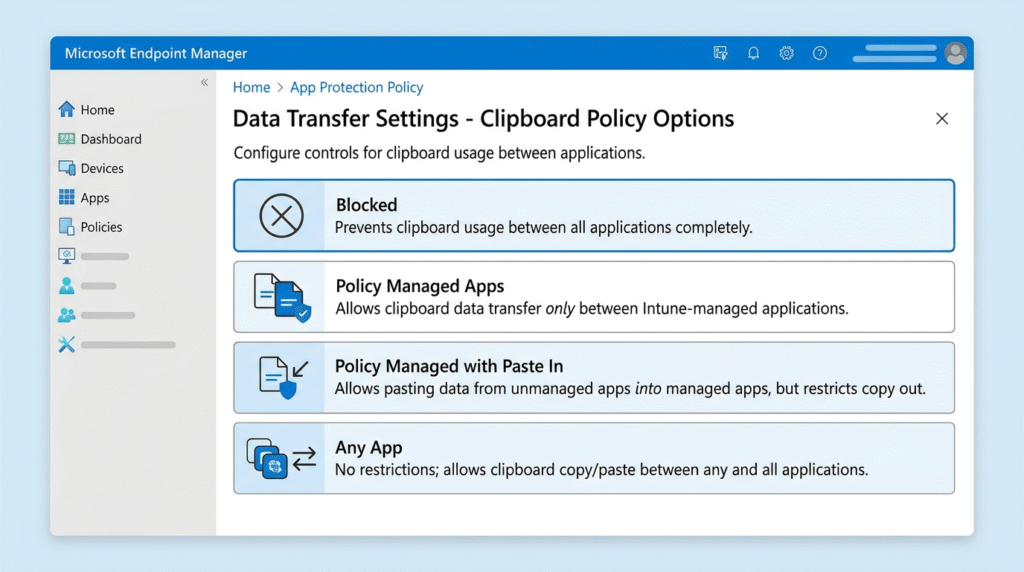
Your IT admin controls this behavior through four clipboard policy settings inside Microsoft Endpoint Manager:
| Policy Setting | What It Allows |
|---|---|
| Blocked | No clipboard transfers between any apps |
| Policy Managed Apps | Paste only between Intune-managed apps |
| Policy Managed with Paste In | Managed apps can receive pastes from any app, but cannot paste out |
| Any App | No clipboard restriction |
Why Are You Getting This Error?
This error appears for several different reasons depending on your device and setup. Identifying your specific cause leads directly to the right fix.
- Microsoft Intune’s App Protection Policy is actively blocking clipboard transfers between managed and unmanaged apps on a work device
- An outdated Microsoft Office installation is misreading policy settings and triggering the restriction incorrectly
- The Phone Link app on a personal Windows 10 or Windows 11 PC is syncing clipboard data from a connected work phone, which carries its MDM policy with it
- A corrupted file is triggering a false paste restriction inside Word or Excel
- Your organization has set a character limit restriction, which causes the message to read “Only 25 characters are allowed” instead of a full block
- On Android, Google Keyboard sometimes displays this as a recommendation warning rather than a hard block
How to Fix the Error on Windows 10 and Windows 11
This section covers the most common fixes for Windows users, ordered from simplest to most advanced. Try each one before moving to the next.
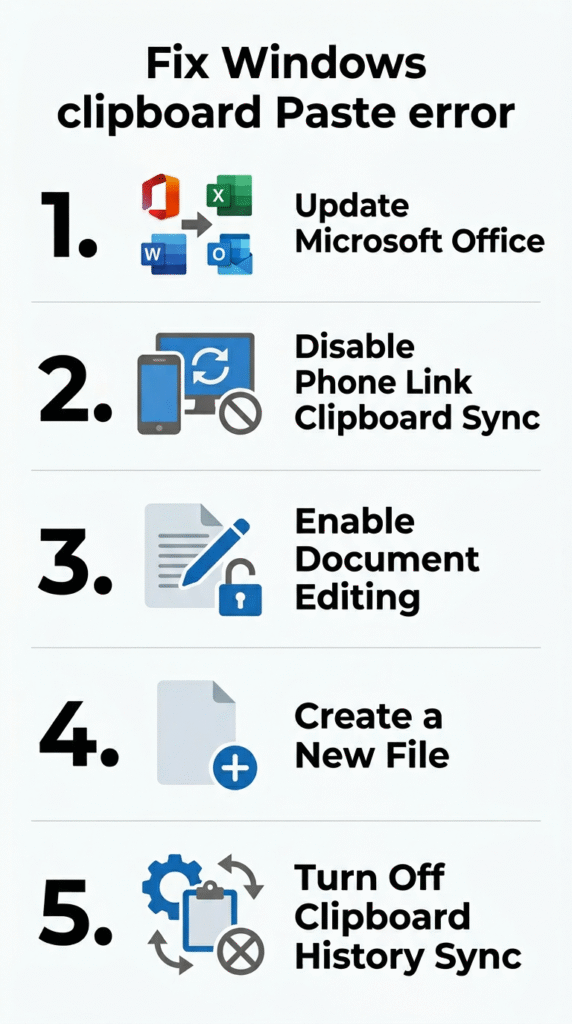
Update Microsoft Office Applications
Outdated Office versions frequently misapply Intune policies, causing the paste error to appear even when your IT admin has not fully blocked clipboard activity.
- Open any Microsoft Office app such as Word or Outlook
- Click File in the top left corner
- Select Account from the left menu
- Click Update Options, then select Update Now
- Wait for the update to complete, then restart the application and test pasting again
Disable Phone Link Cross-Device Clipboard Sync
This fix is specifically for personal PCs that are not enrolled in Intune but still show this error. The Phone Link app on Windows 11 can sync your work phone’s clipboard policy to your personal computer, bringing the paste restriction with it.
- Open the Phone Link app on your Windows PC
- Click the Settings gear icon in the top right
- Navigate to Features
- Find Cross-device copy and paste and toggle it off
- Restart your PC and test again
This is one of the most underreported causes of this error, particularly for people using a personal laptop connected to a work Android phone via Phone Link.
Enable Document Editing
If the error appears only in Word or Excel, the file may be in Protected View or restricted editing mode.
- Open the document showing the error
- Click the Review tab in the ribbon
- Look for Restrict Editing and click Stop Protection if it is active
- Try the Review tab or look for an Enable Editing banner at the top of the document
- Click Enable Editing and attempt to paste again
Create a New File as a Workaround
If a specific file is corrupted and triggering the paste block, creating a new file often bypasses the issue without any policy change.
- Open a new blank Word document or Excel spreadsheet
- Try pasting your content into the new file
- If it works, copy the content from the new file back into the original using a supported method
Disable Clipboard History Sync in Windows Settings
Windows 11 includes a Clipboard History feature that can sync clipboard content across devices via your Microsoft account. If your Microsoft account is a work account, this sync can carry policy restrictions.
- Open Windows Settings using Win + I
- Navigate to System, then Clipboard
- Turn off Clipboard History and Sync Across Devices
- Restart your PC and test pasting again
How to Fix the Paste Error on Android
On Android, this error is usually caused by Intune’s App Protection Policy on your work apps. The following fixes address the most common Android-specific causes.
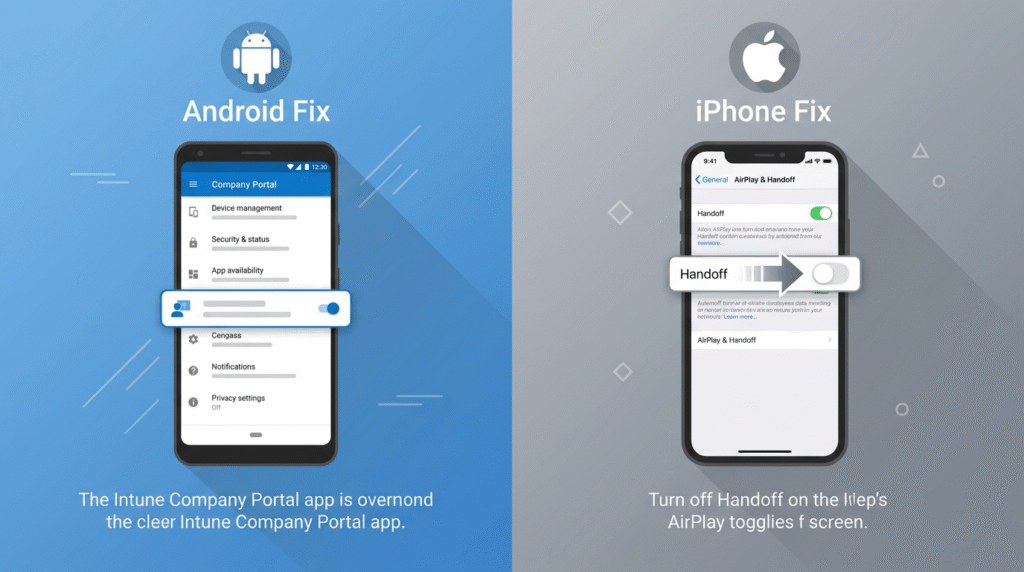
Clear the Company Portal App Cache
The Company Portal app manages Intune policies on your Android device. A stale or corrupted cache can cause policies to apply incorrectly.
- Open Settings on your Android device
- Go to Apps, then find and tap Company Portal
- Tap Storage, then tap Clear Cache
- Reopen your managed app and test the paste function
Try the Press-and-Hold Method on Google Keyboard
On some Android devices, Google Keyboard shows the “your organization’s data cannot be pasted here” message as a warning rather than a hard block. Pressing and holding the paste option in the keyboard toolbar sometimes bypasses this prompt and completes the paste action.
Update the Affected App
An outdated version of Outlook, Microsoft Teams, or OneDrive on Android can misread App Protection Policy settings. Open the Google Play Store, search for the affected app, and tap Update if one is available. Restart the app and test pasting again.
How to Fix the Error on iPhone and iPad
On iPhone and iPadOS, the paste restriction is commonly caused by Intune policies on managed apps, iOS memory behavior, or the Handoff feature conflicting with clipboard access between Apple and Microsoft environments.
Disable Handoff on iPhone
Apple’s Handoff feature shares clipboard content across Apple devices. When a work policy is active, this can create a conflict with managed Microsoft apps.
- Open Settings on your iPhone
- Tap General, then tap AirPlay and Handoff
- Toggle Handoff off
- Restart Microsoft Outlook or Teams and test pasting
Update Microsoft Authenticator
Microsoft Authenticator handles identity verification for Intune-managed apps on iOS. An outdated Authenticator version can cause App Protection Policy errors, including paste restrictions.
- Open the App Store
- Search for Microsoft Authenticator
- Tap Update if an update is available
- Reopen the affected app and test again
Re-add Your Corporate Account
If the above steps do not work, removing and re-adding your corporate account on the affected app forces a fresh policy sync from Entra ID and Microsoft Endpoint Manager.
- Open Outlook or Teams on your iPhone
- Go to Settings within the app
- Tap your work account and select Sign Out
- Sign back in using your corporate credentials
- Allow the app to complete its policy sync and test pasting
How to Fix the Error in Outlook, Teams, and Other Microsoft 365 Apps
Some Microsoft 365 apps have app-specific causes for this error beyond general Intune policy. The following covers the most commonly affected applications.
Outlook
In Outlook, the paste restriction most often appears when copying from a policy-managed email into an unmanaged app. In addition to updating Office, try composing a reply inside Outlook itself and pasting there first. If that works, the restriction is app-boundary-based rather than a corrupted file issue.
Microsoft Teams
In Microsoft Teams, the paste block typically activates when copying chat content or file content to an external app. If you need to transfer Teams content, use the Share to Outlook option inside Teams rather than copying directly. This keeps the transfer within the Office 365 policy-managed environment and bypasses the restriction.
SharePoint and OneDrive
For SharePoint and OneDrive, the paste error often relates to Conditional Access policies configured through Entra ID rather than App Protection Policies alone. Accessing SharePoint through a browser rather than the desktop sync client sometimes resolves the restriction, since browser sessions may have different Conditional Access configurations.
Power BI
In Power BI, paste and export restrictions are frequently tied to row-level security and Data Loss Prevention policies. These require admin-level changes and cannot typically be resolved at the user level.
How IT Admins Can Fix the Paste Error
If you are an IT administrator receiving reports of this error from users, the following steps cover the primary admin-side fixes through Microsoft Endpoint Manager, Group Policy Management Console, and Azure Active Directory.
Modify Intune App Protection Policy in Microsoft Endpoint Manager
This is the most direct fix for organizations using Mobile Application Management or Mobile Device Management through Intune.
- Sign into the Microsoft Endpoint Manager admin center at endpoint.microsoft.com
- Navigate to Apps, then App Protection Policies
- Select the relevant policy for your platform (iOS or Android)
- Click Properties, then click Edit next to Data Transfer
- Find the setting “Restrict cut, copy, and paste between other apps”
- Change the value from Blocked or Policy Managed Apps to Policy Managed with Paste In or Any App depending on your organization’s security requirements
- Click Review and Save
- Policy changes typically propagate to enrolled devices within 30 minutes. Ask users to restart their apps after the update deploys.
Use Group Policy Management Console for Windows
For Windows environments managed through Group Policy rather than Intune, the clipboard restriction may be set via Group Policy.
- Open Group Policy Management Console on your domain controller
- Navigate to Computer Configuration, then Administrative Templates, then Windows Components, then Remote Desktop Services
- Find the setting “Do Not Allow Clipboard Redirection”
- Set it to Disabled to allow clipboard transfers
- Run gpupdate /force on affected machines or wait for the next Group Policy refresh cycle
Review Entra ID and Azure Active Directory Conditional Access Policies
In some environments, Conditional Access policies inside Entra ID (formerly Azure Active Directory) restrict data movement based on device compliance status, location, or application context.
- Sign into the Azure portal at portal.azure.com
- Navigate to Azure Active Directory, then Security, then Conditional Access
- Review policies that apply to Microsoft 365 apps
- Check for policies enforcing App Protection Policy compliance as a condition of access
- Consult with your security team before modifying any Conditional Access policy, as changes affect all users within the policy scope
You can also run the following PowerShell command to identify which App Protection Policies are active and affecting which apps:
Get-IntuneAppProtectionPolicy
This requires the Microsoft.Graph PowerShell module and appropriate admin permissions.
What to Do When You Do Not Have Admin Access
If you cannot modify Intune settings yourself, the following workarounds resolve the issue in most cases without requiring IT involvement.
- Use Outlook Web App in a browser instead of the desktop client, as browser sessions sometimes operate under different Conditional Access configurations
- Switch browsers if one browser shows the restriction and another does not
- Create a new blank document and paste into it rather than pasting directly into the restricted destination
- Use the Microsoft 365 web versions of Teams, Word, and Excel instead of desktop apps
- If none of these workarounds succeed, contact your IT administrator and provide a specific description of which app you are copying from, which app you are pasting into, and the device and operating system you are using
Frequently Asked Questions
Why does it say “your organization’s data cannot be pasted here” on my personal computer?
On a personal PC, this usually happens because the Phone Link app is syncing clipboard data from a connected work phone. The work phone carries its Intune Mobile Device Management policy, which travels through the Phone Link connection to your personal Windows 10 or Windows 11 machine. Disabling cross-device copy and paste in Phone Link settings resolves this in most cases. If you also have a work Microsoft account connected in Windows Settings, signing it out of Windows Settings may also help.
Can I bypass the paste restriction without contacting IT?
Yes, in some cases. Updating Microsoft Office, restarting the affected app, switching to a browser-based version of the app such as Outlook Web App, or pasting into a newly created file often resolves the error without needing admin access. If your organization has set a strict Blocked policy in Intune, only your IT administrator can change the setting.
Why does the error say “only 25 characters are allowed”?
This version of the message indicates a character limit restriction inside your organization’s App Protection Policy rather than a complete block. The policy allows small amounts of text to transfer for usability while preventing bulk data movement. Only your IT administrator can raise or remove this limit through Microsoft Endpoint Manager.
Does this error mean my device is being monitored?
Not necessarily monitored in real time. It means your device has a Mobile Application Management or Mobile Device Management profile installed through Intune, either via the Company Portal app or a work account connected to your device. The restriction is a Data Loss Prevention measure, not live surveillance. Your organization can see device compliance status but the clipboard restriction itself is an automated policy, not an active monitoring action.
How long does it take for an Intune policy change to take effect?
Intune policy changes typically propagate to enrolled devices within 30 minutes. After your IT admin deploys the change, restart the affected Microsoft 365 app. In some cases a full device reboot is needed before the updated App Protection Policy applies.
Does this error affect screenshots too?
Screenshot restrictions and clipboard paste restrictions are controlled by separate settings inside Intune’s App Protection Policy. Some organizations enforce both. Others allow screenshots while blocking clipboard transfers. Your specific configuration depends on the policies your IT admin has set. If screenshot blocking is also active, you will see a separate black screen or restriction message when attempting to capture your screen.
Managing corporate data restrictions is one part of staying secure at work. But your personal inbox deserves the same level of protection. When you sign up for apps, tools, and services with your real email address, you invite spam, trackers, and data brokers into your personal life. Using a temporary email address from freemail.ai keeps your personal inbox clean and your private data separate from everything else. No setup needed. No tracking. Just a disposable address whenever you need one.