

Knowing how to send someone an email is one of the most practical skills you can have, and it takes less than two minutes once you know the steps. Whether you’re using Gmail, Outlook, or your phone, the process is nearly identical across all platforms.
This guide walks you through every step clearly. By the end, you’ll know exactly how to send someone an email, what to write, and how to avoid the most common mistakes that trip people up.
What You Need Before You Send Someone an Email
Before you open a compose window, get three things sorted:
- An active email account — Gmail, Outlook, Yahoo Mail, or any other provider works fine
- The recipient’s email address — one wrong character and your message goes to the wrong person or bounces back
- A clear reason for writing — know what you want to say before you start typing; it makes the email shorter and better
If you don’t have an email account yet, check out the FreeMail AI complete email guide, it covers account setup, inbox management, and more for absolute beginners.
How to Send Someone an Email Using Gmail (Step by Step)
Gmail is the most widely used email service. These steps work in any desktop browser.
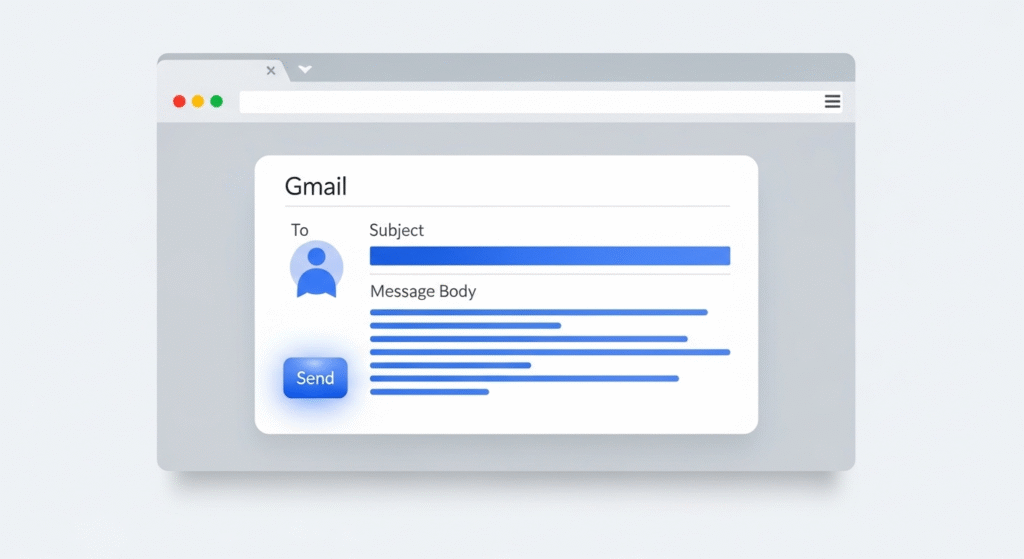
Step 1: Open Gmail and Click Compose
Go to gmail.com and log in. In the top-left corner, click the blue Compose button. A new email window opens at the bottom-right of your screen.
Step 2: Add the Recipient’s Email Address
Click inside the To field and type the person’s email address. Read it twice before moving on — a typo here is the single most common email mistake. To loop in extra people, click Cc. For a hidden copy nobody else can see, use Bcc.
Step 3: Write a Clear Subject Line
Click the Subject field and write something specific. “Project Update — April Report” works far better than “Hi” or leaving it blank. People decide whether to open an email based on the subject alone, so make it count.
Step 4: Type Your Message
Click into the large text area and start writing. Lead with your main point — don’t bury it in a long intro. Short paragraphs read better than walls of text. Aim for three to five sentences for most requests.
Need help drafting the actual message? The AI Mail Generator at FreeMail AI writes a full email draft from a short prompt — useful when you’re stuck on phrasing.
Step 5: Add an Attachment (If Needed)
Click the paperclip icon at the bottom of the Compose window. Select the file from your device and wait for it to finish uploading before you hit Send. Attaching the file after you’ve written “see attached” is a habit worth building.
Step 6: Click Send
Once everything looks right, click the blue Send button. The message lands in the recipient’s inbox within seconds. Check your Sent folder to confirm it went through.
For a deeper Gmail-specific walkthrough, our guide on how to send email using Gmail covers advanced features like scheduling, signatures, and formatting.
How to Send Someone an Email on Your Phone
The steps are nearly identical on mobile — the buttons just look a little different.
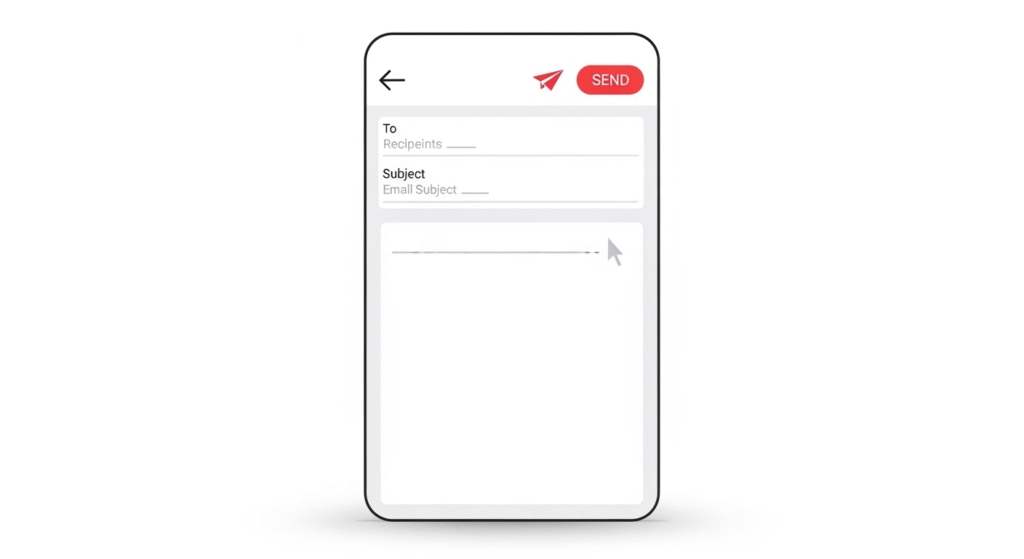
On Android (Gmail app):
- Open the Gmail app
- Tap the Compose button — it’s the pencil icon in the bottom-right corner
- Enter the recipient’s address in the To field
- Add a subject line and write your message
- Tap the paper airplane icon to send
On iPhone (Mail app):
- Open the Mail app
- Tap the Compose icon — the square with a pencil, bottom-right
- Fill in the To, Subject, and body fields
- Tap Send in the top-right corner
Both methods work the same way as desktop. If you manage multiple addresses across devices, our post on how to create multiple email addresses explains how to keep everything organized.
How to Send Someone an Email Using Outlook
Outlook follows the same pattern. Here’s the quick version:
- Go to outlook.com and sign in
- Click New Mail in the top-left corner
- Type the recipient’s address in the To field
- Add a subject, then write your message
- Click Attach in the toolbar if you need to include a file
- Click Send
Outlook is the go-to in corporate environments. So if you’re emailing a colleague at work, they’re most likely reading it in Outlook. The layout differs from Gmail, but the core steps for how to send someone an email stay exactly the same.
Writing an Email That Actually Gets a Reply
Knowing how to click Send is the easy part. Writing an email people actually respond to takes a little more thought.
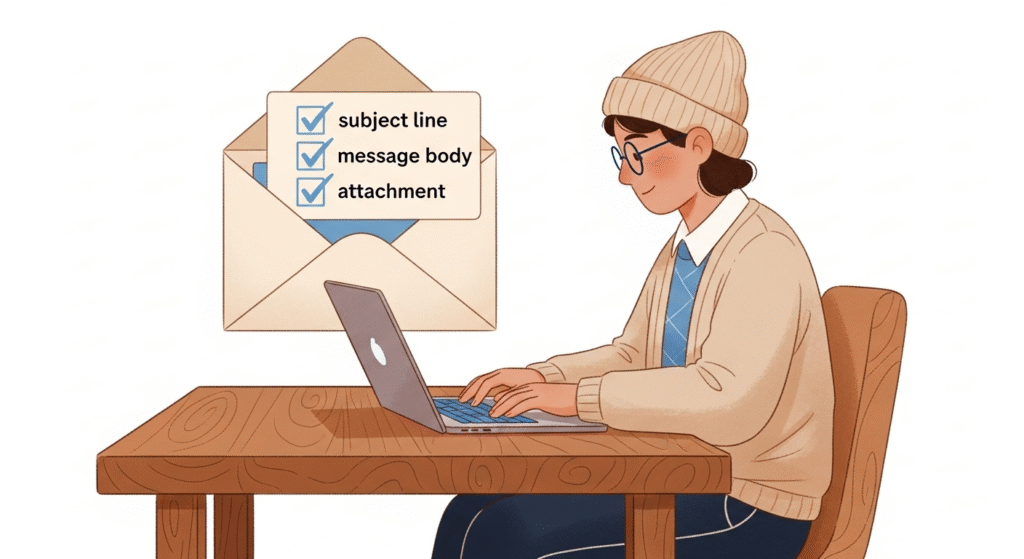
Subject line: Be specific. “Question about Thursday’s invoice” gets opened. “Hey” gets ignored. Keep it under 60 characters so it doesn’t get cut off on mobile.
Opening line: Skip long intros. Start with your reason for writing — for example: “I’m following up on the proposal we discussed last week.” The reader should know why you’re emailing within the first sentence.
Body: Keep it short. Three to five sentences for simple requests. Longer only when the topic genuinely requires it. Break text into short paragraphs — nobody wants to read a single block of 15 lines.
Sign-off: Close with something like “Best,”, “Thanks,” or “Kind regards,” followed by your name. Casual emails can end with just your first name.
Proofread: Read your email once before hitting Send. Check the recipient address, the subject line, and any attachments. A quick read-aloud catches awkward sentences and tone issues fast.
Want to add some personality to your messages? Our guide on how to use emojis in email covers when it works and when to skip it.
CC, BCC, and Reply All – What’s the Difference?
These three features confuse people all the time. Here’s a plain breakdown:
CC (Carbon Copy)
Everyone on the email can see who was CC’d. Use it when you want to keep someone in the loop — a manager, teammate, or client — but they’re not the main recipient.
BCC (Blind Carbon Copy)
BCC sends a hidden copy. Other recipients can’t see who was BCC’d. Use it for mass emails where you don’t want addresses visible to each other, or when adding a discreet third party.
Reply All
Reply All sends your response to every person on the thread — the original sender, everyone CC’d, and sometimes BCC’d contacts. Use it only when your reply is relevant to the whole group. Most of the time, a direct reply to the sender is the better call.
If you send to large groups often, our guide on how to make a mailing list in Gmail saves you from manually typing addresses every time.
Common Mistakes When Sending Emails (And How to Fix Them)
Even experienced email users fall into these traps. Watch out for them:
1. Wrong recipient address
One typo sends your message to a stranger — or returns a bounce error. Always re-read the address. For new contacts, ask them to confirm their email before you send anything sensitive.
2. Forgetting the attachment
You write “see the attached document” and forget to attach it. Most email apps now warn you about this, but it still happens constantly. Get in the habit of attaching the file before you write the email body.
3. Vague or missing subject line
Emails with no subject look suspicious and often get deleted unread. Write something specific — even five words is enough.
4. Sending from the wrong account
If you manage work and personal inboxes together, double-check which account is selected before you hit Send. Sending a personal message from your work address — or vice versa — happens more than people admit.
5. Not proofreading
Spell-check catches typos, not wrong words. “I’m happy to meat you” passes spell-check fine. Read it once before sending.
When to Use a Temporary Email Instead of Your Real One
There are times when you don’t want to send someone an email from your primary address — or when you need a working inbox but don’t want to hand over your personal one.
Common use cases:
- Signing up for a website or app trial you’re testing out
- Registering for a service you’re not sure about yet
- Testing email forms or workflows
- Keeping your main inbox clean from promotional messages
FreeMail AI’s Temp Gmail tool gives you a Gmail-style temporary address instantly — no account creation needed. For a wider range of address formats, the email generator creates realistic addresses for testing, sign-ups, and mock data. These tools are especially useful when you want a working inbox without connecting it to your real identity.
Frequently Asked Questions
How do I know if my email was sent successfully?
After clicking Send, open your Sent folder. If the email appears there, it went through. Many email apps also show a brief confirmation at the bottom of the screen right after sending.
Can I send someone an email without a subject line?
Yes, but most email clients will ask you to confirm before sending a blank subject. Emails with no subject often end up in spam or go unread — so it’s worth taking five seconds to write one.
What is the difference between CC and BCC when I send someone an email?
CC lets every recipient see who else received the email. BCC sends a hidden copy — other recipients can’t see the BCC’d person’s address. Use CC for transparency and BCC for privacy or bulk distribution.
How do I send someone an email for the first time?
Start with a short, polite intro — two sentences explaining who you are and why you’re writing. Keep the message focused and close with a specific ask or next step. A clear subject line makes a strong first impression.
What should I do if my email bounces back?
A bounce usually means the address doesn’t exist, has a typo, or the recipient’s inbox is full. Check the spelling first. If the address looks correct, reach out through another channel to confirm their current email address.