

Want to check email by using Google Mail but not sure where to start, or how to do it across every device? This guide covers every method: desktop browser, Android, iPhone, offline access, and pulling in messages from other email accounts. No fluff, just the exact steps you need.
What Is Google Mail (Gmail)?
Google Mail, most people call it Gmail, is Google’s free email service with over 1.8 billion active users worldwide. It gives you 15 GB of free storage, a powerful search bar, and an AI-assisted inbox that now surfaces your most relevant emails first.
You don’t need any extra software. Gmail runs in any browser and has dedicated apps for Android and iOS. Once you set it up, everything syncs across every device automatically. If you want to explore the full picture of how email works, the complete email guide at FreeMail AI is a solid place to start.
How to Check Email by Using Google Mail on a Desktop
Checking your Gmail inbox on a computer takes less than a minute. Here are the exact steps:
- Open any browser — Chrome, Firefox, Edge, or Safari.
- Go to gmail.com in the address bar and press Enter.
- Enter your Google account email address and click Next.
- Type your password and click Next again.
- Your inbox opens automatically once you sign in.
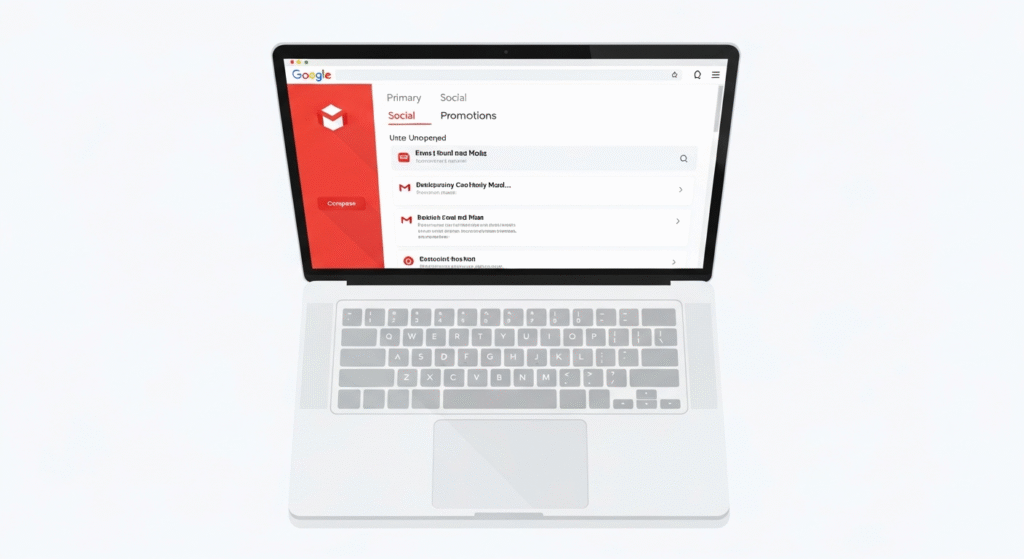
Your inbox organizes messages into three tabs: Primary, Social, and Promotions. Personal emails land in Primary. Most newsletters and alerts sort themselves into the other tabs without you doing anything.
To read a message, click on it. Gmail opens the full conversation thread. From there, you can reply, forward, star, or archive the email in a single click.
Check Email by Using Google Mail with Multiple Accounts
Many people run two or more Gmail accounts, one personal, one for work. Switching between them is easy:
- Click your profile picture in the top-right corner of Gmail.
- Select Add another account.
- Sign in with your second Google account email and password.
- Click your profile picture again anytime to toggle between accounts.
This way, you can check email by using Google Mail across multiple inboxes without logging out. Each account keeps its own labels, settings, and contacts completely separate.
How to Check Email by Using Google Mail on Mobile
The Gmail app is free on both Android and iPhone. It’s the fastest way to stay on top of messages when you’re away from your desk.
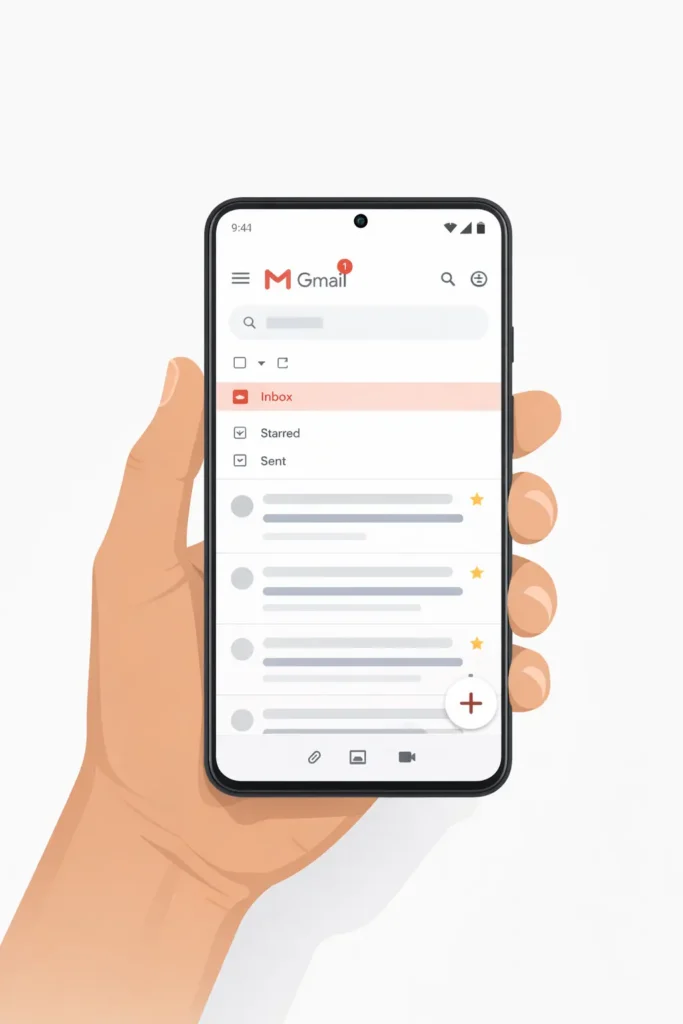
Android
- Open the Gmail app on your Android phone.
- If it’s your first setup, tap Add an email address.
- Select Google from the list of providers.
- Sign in with your Gmail credentials and tap Done.
- Tap your inbox to start reading messages.
iPhone and iPad
- Download Gmail from the App Store.
- Open the app and tap Sign in.
- Enter your Google email address and password.
- Allow notifications so new email alerts reach you in real time.
Once set up, the mobile app syncs with your desktop inbox instantly. When you check email by using Google Mail on your phone, you see the exact same messages and labels. Archive something on mobile — it disappears from desktop too.
How to Check Email from Other Accounts Using Gmail
Gmail’s Gmailify feature lets you pull messages from Yahoo, Outlook, and custom-domain addresses directly into your Gmail inbox. You get one place to manage everything.
Here’s how to set it up:
- Open Gmail on desktop and click the Settings gear icon in the top right.
- Select See all settings.
- Click the Accounts and Import tab.
- Under “Check mail from other accounts,” click Add a mail account.
- Enter your non-Gmail address and click Next.
- Choose Link accounts with Gmailify (if supported) or Import emails via POP3.
- Fill in the server details and click Add account.
After setup, Gmail fetches messages from that account automatically every few minutes. You can check email by using Google Mail as your single hub for every inbox, with no need to switch between apps.
If you need a Gmail-style inbox for testing a sign-up form or receiving a one-time verification code, a temp Gmail address from FreeMail AI gives you an instant working inbox, no account creation required.
Gmail Search Tips to Find Emails Fast
Gmail added AI-powered “Most relevant” search results in early 2026. When you check email by using Google Mail’s search bar, it now ranks results by recency, frequent contacts, and your past interactions — not just keyword matches.
Basic Search
Click the search bar at the top. Type a name, keyword, or subject. Press Enter. Gmail returns ranked results immediately. To switch from relevance to chronological order, click Most relevant and select Most recent.
Gmail Search Operators
These short commands filter results with precision:
| Operator | What It Does | Example |
|---|---|---|
from: | Filter by sender | from:boss@company.com |
to: | Filter by recipient | to:client@email.com |
subject: | Search by subject | subject:invoice |
has:attachment | Find emails with files | has:attachment |
after: / before: | Filter by date | after:2026/01/01 |
is:unread | Show unread only | is:unread |
is:starred | Show starred emails | is:starred |
Search Spam and Trash
By default, Gmail skips Spam and Trash in searches. To include them:
- Click the arrow inside the search bar to open advanced options.
- Change the “Search” dropdown from All Mail to Mail & Spam & Trash.
- Enter your keywords and click Search.
Gmail Inbox Organization Tips
Once you know how to check email by using Google Mail efficiently, keeping the inbox organized saves you real time every day.
Use Labels Like Folders
Labels sort emails into categories. One email can carry multiple labels — unlike traditional folders. To create one:
- Scroll down in the left sidebar and click More.
- Select Create new label.
- Name it and click Create.
Drag emails onto labels, or set filters to apply labels automatically to incoming messages.
Set Up Automatic Filters
Filters handle sorting for you. To create one:
- Click Show search options in the search bar.
- Define your rule (sender, subject, keyword).
- Click Create filter and choose what Gmail should do — skip inbox, apply a label, delete, or mark as read.
For example, filter all emails from a specific newsletter to skip the inbox and auto-label as “Reading List.”
Archive Instead of Delete
Archiving removes an email from your inbox but keeps it findable in All Mail. Deleting sends it to Trash, where Gmail removes it after 30 days. Archive anything you might need later. For emails you’ll never revisit, delete.
Need to find archived messages later? This guide on how to find archived mail in Gmail walks you through every method.
Also, if you’re building a mailing list for campaigns, check the guide on how to make a mailing list in Gmail for a clear walkthrough.
Checking Gmail Offline
No internet connection? Gmail can still let you read and write emails — as long as you enabled offline mode in advance.
- Open Gmail in Google Chrome (offline mode only works in Chrome).
- Go to Settings > See all settings > Offline tab.
- Check Enable offline mail.
- Choose how many days of email to cache locally — up to 90 days.
- Click Save changes.
From that point forward, Gmail stores recent emails on your device. Next time you’re offline, open Chrome and visit gmail.com. You can read, reply, and compose. Everything sends automatically once your connection returns.
Privacy Tip: When to Use a Temporary Gmail Address
Sometimes you don’t want to check email by using your main Google Mail account. Maybe you’re signing up for a new app, testing a web form, or avoiding spam from a service you’ll only use once.
FreeMail AI’s Gmail-style address generator creates realistic Gmail usernames instantly — with a working inbox. No registration, no personal information needed. You get the verification email, use the code, and discard the address when you’re done.
For a random disposable address in any format, the FreeMail AI email generator creates professional or random addresses in one click across multiple email formats.
Need to write the email itself quickly? The AI mail generator at FreeMail AI drafts full messages from a short prompt — useful when you need to send a clear email fast. For a step-by-step walkthrough on composing messages, the guide on how to send email using Gmail covers every step.
Sign Out of Gmail Safely
Always sign out when using a shared or public computer. Here’s how:
- Click your profile picture in the top-right corner of Gmail.
- Select Sign out.
For extra security, go to myaccount.google.com > Security > Your devices. You can remotely sign out from any device that still has your Gmail account active — useful if you forgot to log out on a hotel computer or a colleague’s phone.
FAQ: Check Email by Using Google Mail
Q1: Can I check email by using Google Mail without downloading an app?
Yes. Open any browser, go to gmail.com, and sign in with your Google account. The web version works on any device — desktop, tablet, or phone — without installing anything.
Q2: How do I check email by using Google Mail on someone else’s phone?
Open a browser on their device and go to gmail.com. Sign in with your credentials. When finished, click your profile picture and select Sign out before returning the phone.
Q3: Why can’t I check my Gmail inbox right now?
The most common causes are an incorrect password, a suspended account, or a poor internet connection. Visit accounts.google.com to verify your account status. From there, you can reset your password or check for unusual sign-in activity.
Q4: Can I check email by using Google Mail for a non-Gmail address?
Yes. Gmail’s Gmailify or POP3 setup pulls messages from Yahoo, Outlook, or custom-domain accounts directly into your Gmail inbox. See the “Check Email from Other Accounts” section above for the full steps.
Q5: Is checking email by using Google Mail completely free?
Gmail is free for personal use. Every Google account includes 15 GB of shared storage across Gmail, Drive, and Photos. Google Workspace (paid plans) adds extra storage, custom domains, and admin controls for businesses.